

Your site, checked on a schedule
PixyScan scans your site daily, weekly or monthly on its own, and tells you what changed.
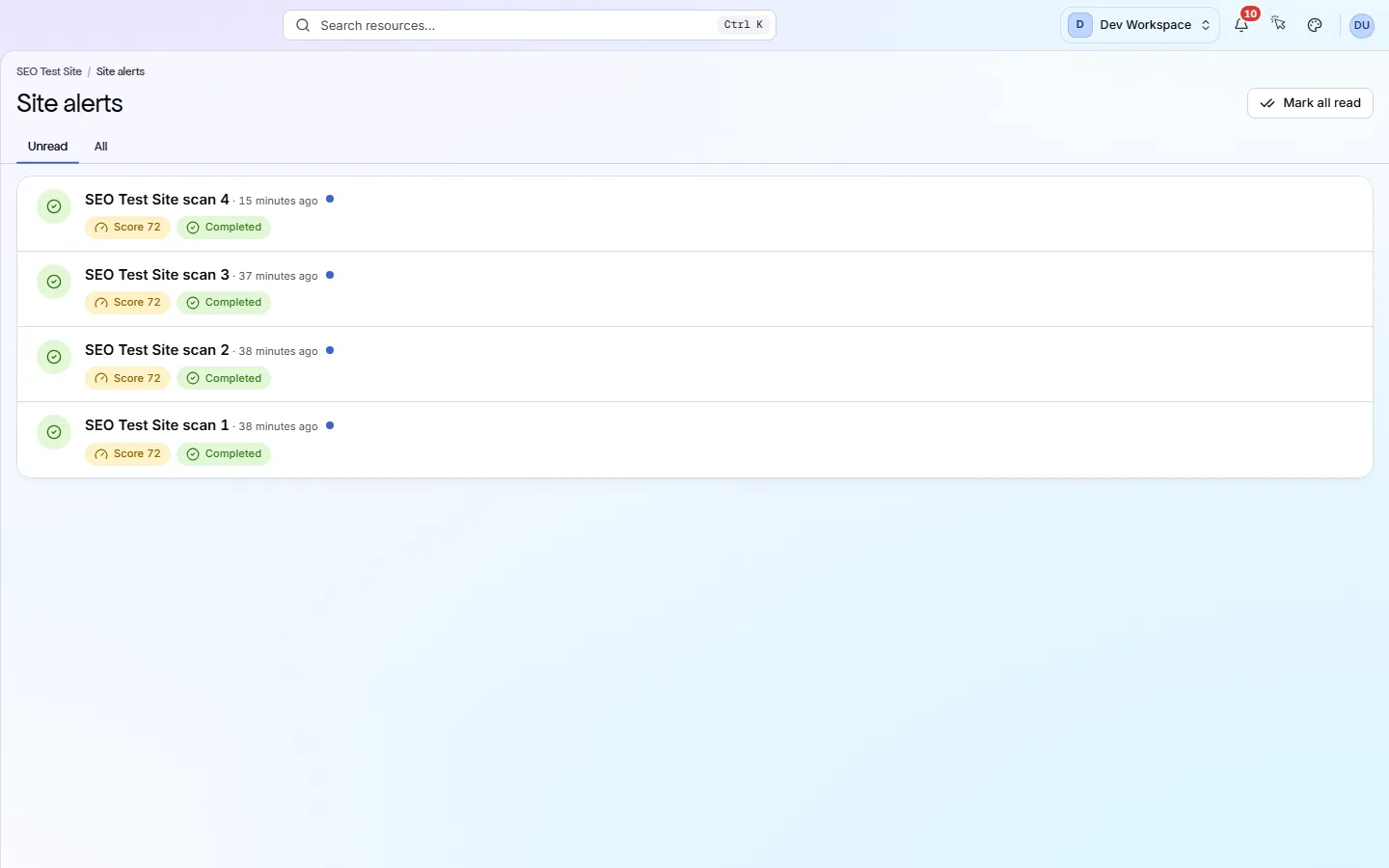
At a glance
What it does and who gets it
- What it does
- PixyScan scans your site daily, weekly or monthly on its own, and tells you what changed.
- Why it helps
- A problem added by a release shows up within days, not months. You only read what is new, not the whole list again.
- Included in
- Hobby, Basic, Pro and Enterprise. Alerts work on every tier, Free included.
What you get
- 01
A schedule for each site
Pick daily, weekly or monthly, at a time in your own timezone. Nobody needs to be signed in. If a scan is missed, PixyScan runs it once when it can, not once per missed slot.
- 02
What changed since last time
Each scan is compared with the one before. The Changes screen sorts problems into New, Resolved and Still open. It also lists pages whose key details changed.
- 03
Alerts by email, Slack or webhook
Get told when a scan finishes or fails, the score drops, or a new critical problem appears. With Search Console connected, from Basic up, you can also hear when Google clicks drop after a deploy. Emails go to the site's members. The same alerts can go to Slack or to any https webhook (a web address that receives the alert).
- 04
A minimum score for each site
Each site has a score threshold, 97 unless you change it. A scan below it raises an alert in the app. You change the number under Settings → SDK & CI/CD, from Basic up.
How to use it
4 steps, in the order you do them.
- 1
Pick a schedule
Open the site's Settings, then the Schedule tab. Choose daily, weekly or monthly, and a start time in your own timezone.
- 2
Let it run
PixyScan scans at that time on its own. Nobody needs to be signed in. The result appears in Scan history.
- 3
Read what changed
Open the Changes screen. Problems are sorted into New, Resolved and Still open, so you start with what is new.
- 4
Turn on alerts
On the Alerts tab, switch on email alerts. Paste a Slack or webhook address to send the same alerts there too.
Which tiers include it
Hobby, Basic, Pro and Enterprise. Alerts work on every tier, Free included.
- Scheduled scans and scan comparison start on Hobby.
- On Free you can still start a scan yourself at any time.
- Alerts by email, Slack or webhook work on every tier.
- Changing the minimum score (the Score gate) needs Basic or above. It is 97 by default.
- The alert for Google clicks dropping after a deploy needs deploys from CI/CD (Basic and above) and Search Console connected.
What it doesn’t do
- No SMS or phone alerts. Point the webhook at another tool if you need one.
- No alert for one specific check. Scan alerts cover four events: scan finished, scan failed, score dropped and new critical problem.
- The below-minimum-score alert shows in the app only, not by email, Slack or webhook.
- It does not track rankings and has no backlink data. Its only traffic alert is a sharp drop in Google clicks after a deploy.
Why use it
When it helps
Everyday moments where it saves you time or catches a problem early.
Catch mistakes after a release
A release can remove a page title or hide a page from search engines. The next scan finds it, and a new critical problem sends an alert.
Look after many sites
Give each site its own schedule. After each scan, read the New column on the Changes screen, not the whole list.
Show that a fix stayed fixed
Scan history keeps every scan, so you can show when a problem went away. If it comes back, it shows as New.
Where to find it in the app
All eleven screensMonitor
Changes
The Changes screen compares two scans of your site. It shows which problems are new, which you fixed and which are still open, and what changed on each page. Included from Hobby up.
Monitor
Scan history
Scan history lists every scan of your site, newest first, with its status and score. Open a past scan and every screen shows your site as it was that day.
Questions
Common questions
Short answers about tiers, setup and limits.
Which tiers include scheduled scans?
Hobby and above. On Free you start each scan yourself, whenever you like.
Will I get an email?
Yes, if you switch it on. Site members can get an email when a scan finishes or fails, when the score drops or when a new critical problem appears. Every email has a one-click unsubscribe link.
What if a scheduled scan fails or is missed?
A failed scan is marked as failed in Scan history, and the scan-failed alert goes out if it is on. Missed scans are made up with one single scan, not one for every missed slot.
Can it warn me when search traffic drops?
Only after a deploy, from Basic up, with Search Console connected. If Google clicks in the 3 days after a deploy from CI/CD fall at least 25% below the same days of the previous 4 weeks, you get one alert. It arrives about a week after the deploy, because Google's newest figures are provisional.
What does Regressed mean?
It marks a problem that was already failing last time and now affects more pages than before.
Will regular scans slow my site down?
A scan reads your pages the way a search engine does. If your server struggles, turn on Rate limit healing in Settings → Crawl, so pages are fetched one at a time with a delay you choose.
Other features
All featuresThe site audit
PixyScan checks every page against 202 search, AI and technical checks and gives your site a health score out of 100.
ReadPages, links and images
Browse every page, link and image the scan found, and open any page for its full report.
ReadCI/CD and MCP
Run a PixyScan scan from your build pipeline and stop the release if your score drops.
ReadSee what is wrong with your site
Add your site and get your score, your to-do list and a fix guide for every problem. Free for one site and 500 pages a month. No card, no time limit.
No card needed · Nothing to install · Cancel any time