

Choose what gets scanned, and when
Each site has its own settings. They decide which pages are scanned, how often, who gets alerts and who can see the site. Changes apply from your next scan.
What it tells you
Questions this screen answers
What people want to know when they open this screen, and where to find the answer.
- 01
How do I stop part of my site being scanned?
On the Crawl tab, add an exclude pattern such as /admin. “Stop crawling here” never fetches matching pages. “Crawl it, but skip its data” follows their links but leaves them out of your report.
- 02
How do I hide a problem I don't care about?
Ignore the check from the Issues screen, on all pages or only some. Manage your rules on the Ignored issues tab. Ignored checks still cost their full points, and site-wide checks cannot be ignored.
- 03
How do I scan my site every week?
On the Schedule tab, press New schedule, choose Weekly, and pick a day and time in your timezone. You can pause it at any time. Included from Hobby up.
- 04
How do I get alerts?
On the Alerts tab, turn on emails for finished or failed scans, score drops and new critical problems. Emails go to the site's members, with one-click unsubscribe. For Slack or a webhook, paste an https address; leave it empty to switch it off.
Good to know
The main facts about this screen, and the check categories it shows.
Key facts
Before you open this screen
- Include and exclude patterns, a page limit and a maximum depth decide which pages are scanned.
- Scheduled scans run daily, weekly or monthly in your timezone, from Hobby up.
- Alerts go by email to the site's members, to Slack or to your own webhook.
- The SDK & CI/CD tab connects your build pipeline, from Basic up.
What's on the screen
The screen, part by part
Each part of the screen, from top to bottom.
- 01
Checks and Ignored issues
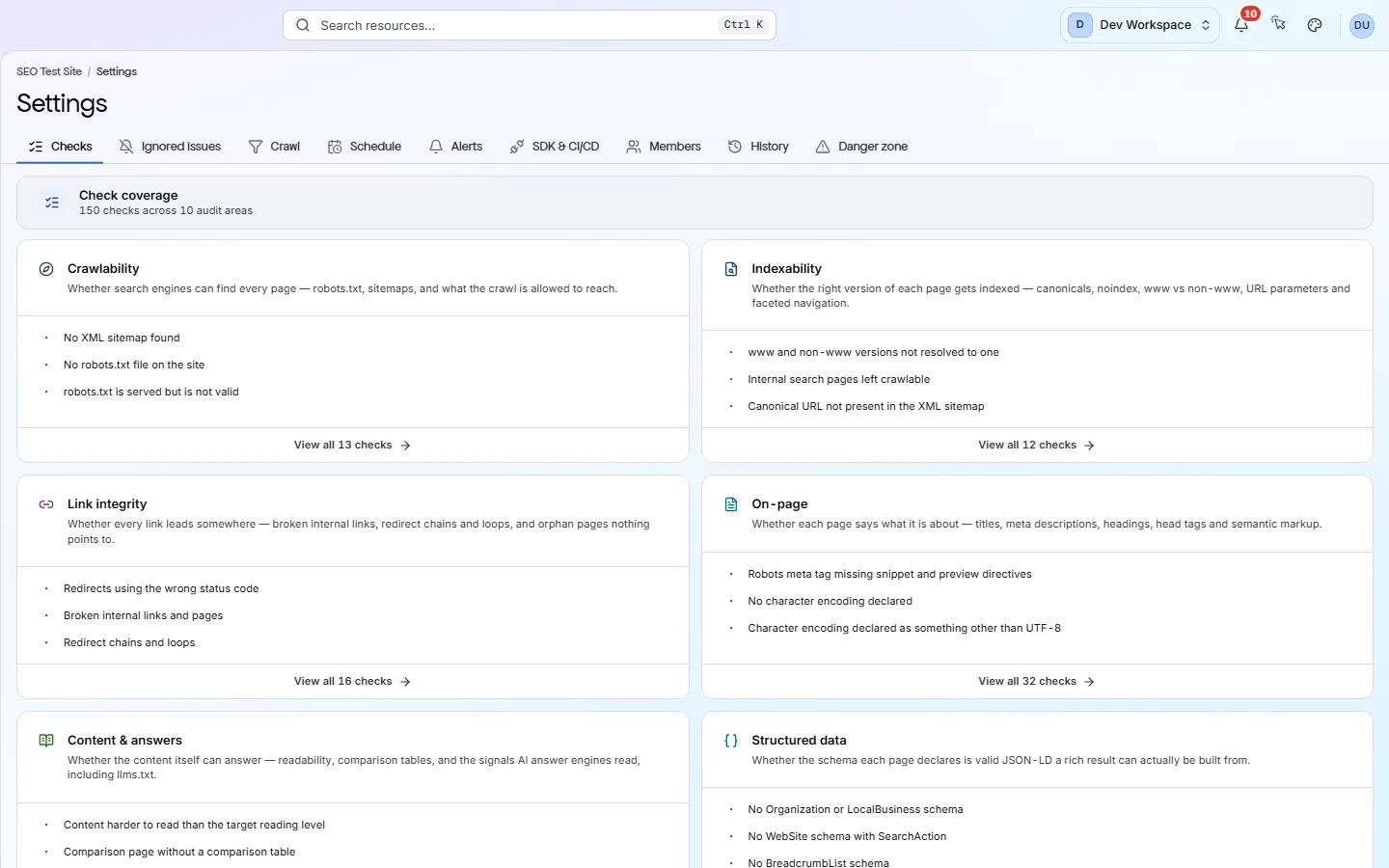
Checks lists all 10 categories and the checks in each. Every category runs on every scan. Ignored issues lists the checks you have ignored, and on which pages.
- 02
Crawl
Which pages are scanned, whether robots.txt and sitemaps are used, and which user agent (bot name) the scan uses. It also holds JavaScript rendering (Pro up), logins for staging sites, and PageSpeed settings (Hobby up).
- 03
Schedule and Alerts
Schedule runs scans daily, weekly or monthly, and can be paused. Alerts decides who hears about scans, score drops and new critical problems.
- 04
SDK & CI/CD
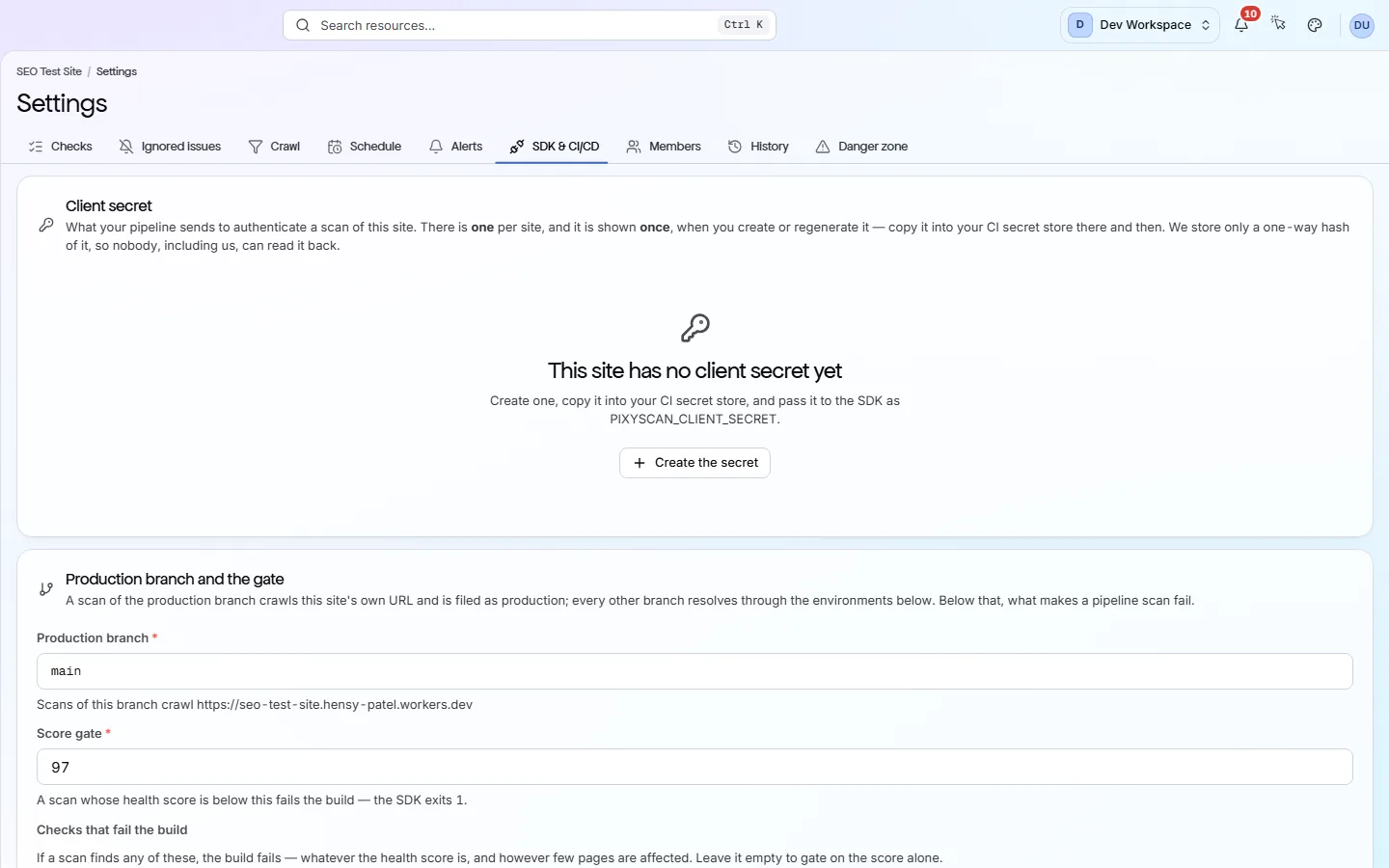
Holds the secret key your build pipeline uses, the lowest passing score (97 by default), checks that always fail the build, and which URL each branch scans. From SDK version 1.2.0, each scan your pipeline starts also records the commit it ran for. Included from Basic up.
- 05
Members, History and Danger zone
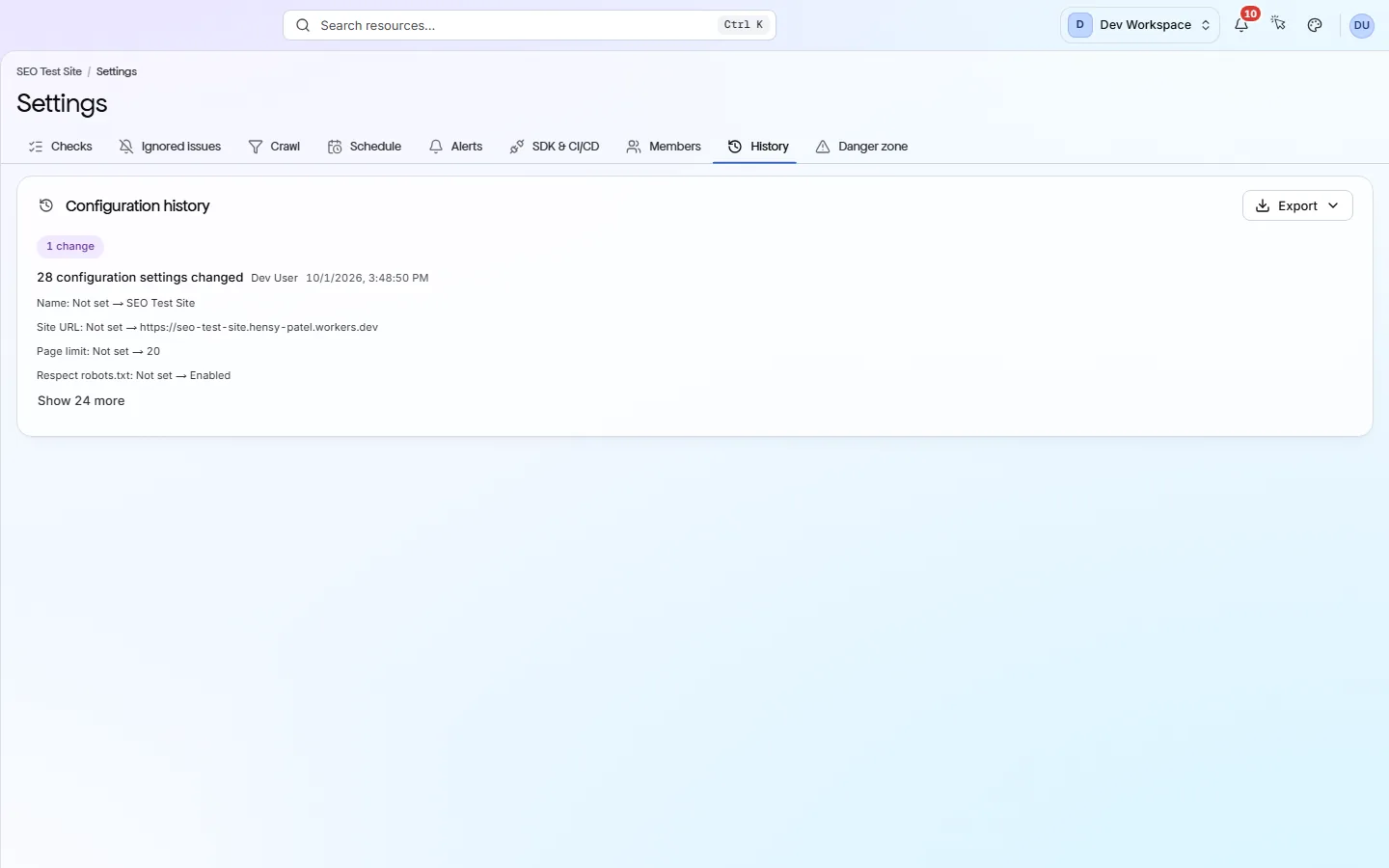
Members controls who can see and work on this site. History lists every settings change, who made it and when. Danger zone is where you remove the site.
Your first visit, step by step
A simple order to follow after your first scan.
- 1
Open the Crawl tab and set a page limit that covers your whole site.
- 2
Add exclude patterns for areas you do not want scanned, such as /admin or /cart.
- 3
Create a weekly schedule on the Schedule tab.
- 4
Turn on the alerts you want on the Alerts tab.
More views
Other tabs on this screen
The other tabs and views on this screen.
FAQ
Common questions about this screen
Does changing a setting update my current report?
No. Settings apply from your next scan, because a report is a record of a scan that already ran. Screens show a notice with a Rescan button after you change something.
Can I turn off a whole category of checks?
No. Every category runs on every scan, so your score always covers every check. To quiet one check, ignore it on some or all pages. It still counts towards your score.
Which settings need a paid tier?
Scheduled scans and PageSpeed need Hobby or above. SDK & CI/CD needs Basic or above. JavaScript rendering needs Pro or above. Crawl scope, alerts, ignore rules, members and history work on every tier.
Can I see which deploy changed my Google traffic?
Yes, with Search Console connected. From version 1.2.0, npx pixyscan-sdk run sends the commit it ran for, found on its own on GitHub Actions, GitLab CI, Bitbucket Pipelines, CircleCI, Vercel and Netlify. Each production deploy's marker on the site's clicks trend then shows its commit, and so does the alert you get if clicks drop sharply in the 3 days after it. A commit value PixyScan cannot use is left out. It never fails the scan.
Can I scan a site behind a login?
Yes, if it uses HTTP Basic Auth (the browser's own password pop-up) or a custom header. Add them on the Crawl tab. PixyScan stores them encrypted. Sites behind a login form on a web page cannot be scanned.
Continue the product tour
Previous screen
Screens follow the order of the app’s menu. See the full list to jump to any of them.
See what is wrong with your site
Add your site and get your score, your to-do list and a fix guide for every problem. Free for one site and 500 pages a month. No card, no time limit.
No card needed · Nothing to install · Cancel any time