

Every scan of your site, in one list
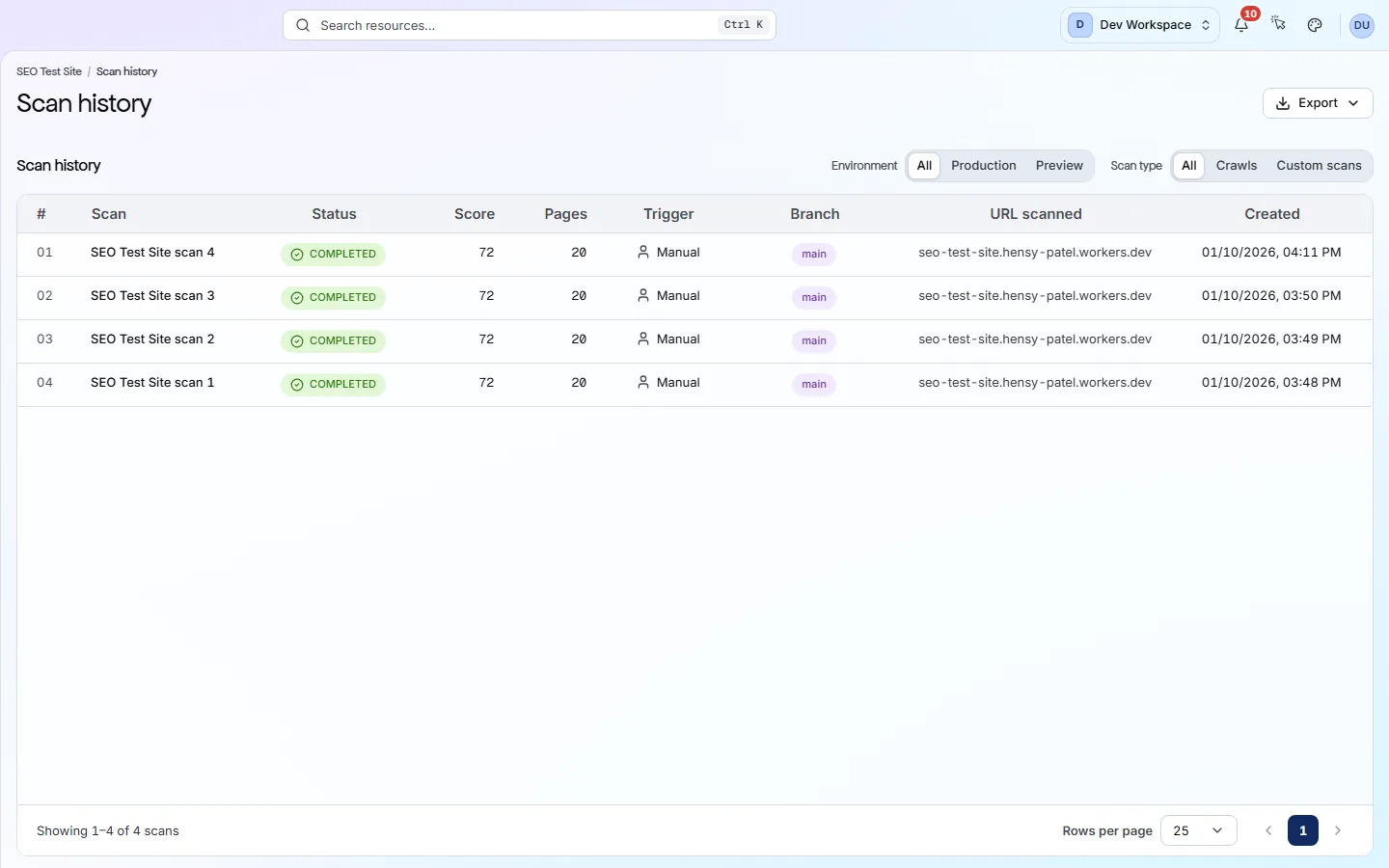
Scan history lists every scan of your site, newest first, with its status and score. Open a past scan and every screen shows your site as it was that day.
What it tells you
Questions this screen answers
What people want to know when they open this screen, and where to find the answer.
- 01
When did our score drop?
Read down the Score column to find the scan where it fell. Then use the Changes screen to compare it with the scan before. You will see which checks started failing.
- 02
What did the site look like before a release?
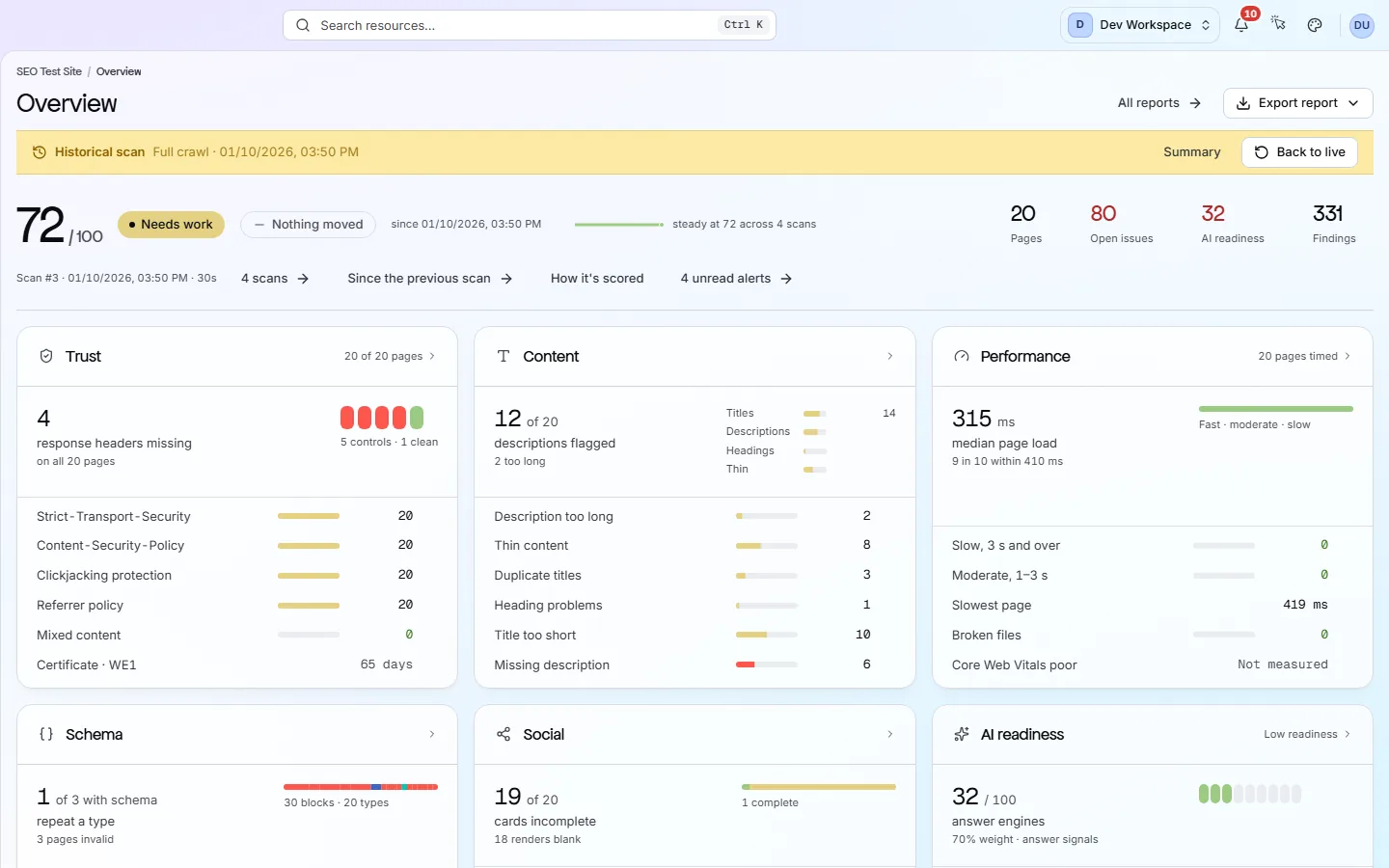
Click a scan from before the release. Every screen then shows that scan, with a “Historical scan” bar at the top. Press Back to live to return.
- 03
What started each scan?
The Trigger column says schedule, manual or SDK. Schedule is a regular scheduled scan. Manual means someone pressed Scan now. SDK means your CI/CD pipeline (your automated build and release process) started it.
- 04
Why does one scan have no score?
Failed or cancelled scans show “Not scored”. They did not finish, so there is nothing complete to score. Press Scan now for a fresh one.
Good to know
The main facts about this screen, and the check categories it shows.
Key facts
Before you open this screen
- Each row shows status, score, page count, what started it, its branch and when it ran.
- Filters split your live site from preview branches, and full crawls from custom scans.
- Opening a past scan switches every screen to it until you press Back to live.
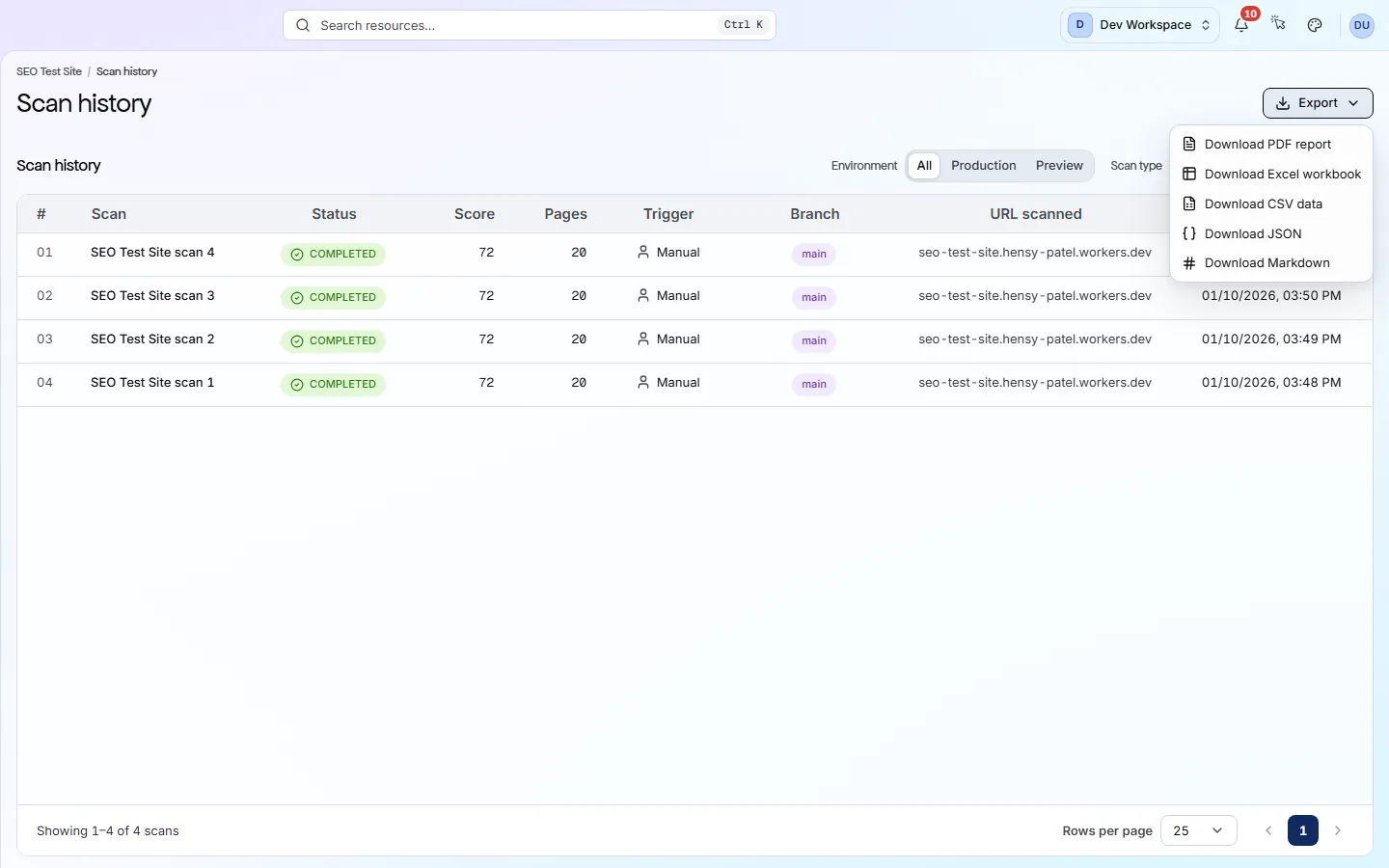
- From Hobby up, you can export your score history in five formats.
What's on the screen
The screen, part by part
Each part of the screen, from top to bottom.
- 01
Filters
Environment separates your live site from preview branches. Scan type separates full crawls from custom scans, which check only a list of URLs you chose.
- 02
Scan list
Columns show Scan, Status, Score, Pages, Trigger, Branch, URL scanned and Created. The list updates by itself while a scan runs.
- 03
Opening a past scan
Click a row to open that scan. A “Historical scan” bar shows its date, a Summary link and a Back to live button.
- 04
Export
From Hobby up, Export downloads your score history, one row per finished scan, with its score, pages and issues.
Your first visit, step by step
A simple order to follow after your first scan.
- 1
Filter to your live site and to Crawls, so you compare like with like.
- 2
Read down the Score column to find where it changed.
- 3
Open that scan, then use Changes to compare it with the one before.
- 4
Press Back to live when you are done.
More views
Other tabs on this screen
The other tabs and views on this screen.
FAQ
Common questions about this screen
How long are scans kept?
30 days on Free, 180 days on Hobby, 1 year on Basic, 2 years on Pro and 10 years on Enterprise. Older scans are deleted by a nightly clean-up.
Can I re-run an old scan?
No. Each scan is a record of your site on that day and cannot be changed. Press Scan now to scan the site as it is today.
Where do I set up scheduled scans?
In Settings, Schedule tab. Scans can run daily, weekly or monthly in your timezone. Included from Hobby up.
Continue the product tour
Previous and next screens
Screens follow the order of the app’s menu. See the full list to jump to any of them.
See what is wrong with your site
Add your site and get your score, your to-do list and a fix guide for every problem. Free for one site and 500 pages a month. No card, no time limit.
No card needed · Nothing to install · Cancel any time