

Keep a large archive free of broken links
Old articles collect dead links and broken markup over the years. PixyScan finds them across your whole archive, and weekly scans show what broke since last week.
Does this sound familiar?
If this sounds like your week, read on. Below is how PixyScan helps.
- Links in old articles point to sites that no longer exist.
- A CMS update broke your article markup, and articles lost their rich results.
- Much of the archive sits so many clicks deep that crawlers rarely reach it.
- Nobody knows which AI crawlers your robots.txt allows or blocks.
How PixyScan helps
How PixyScan helps
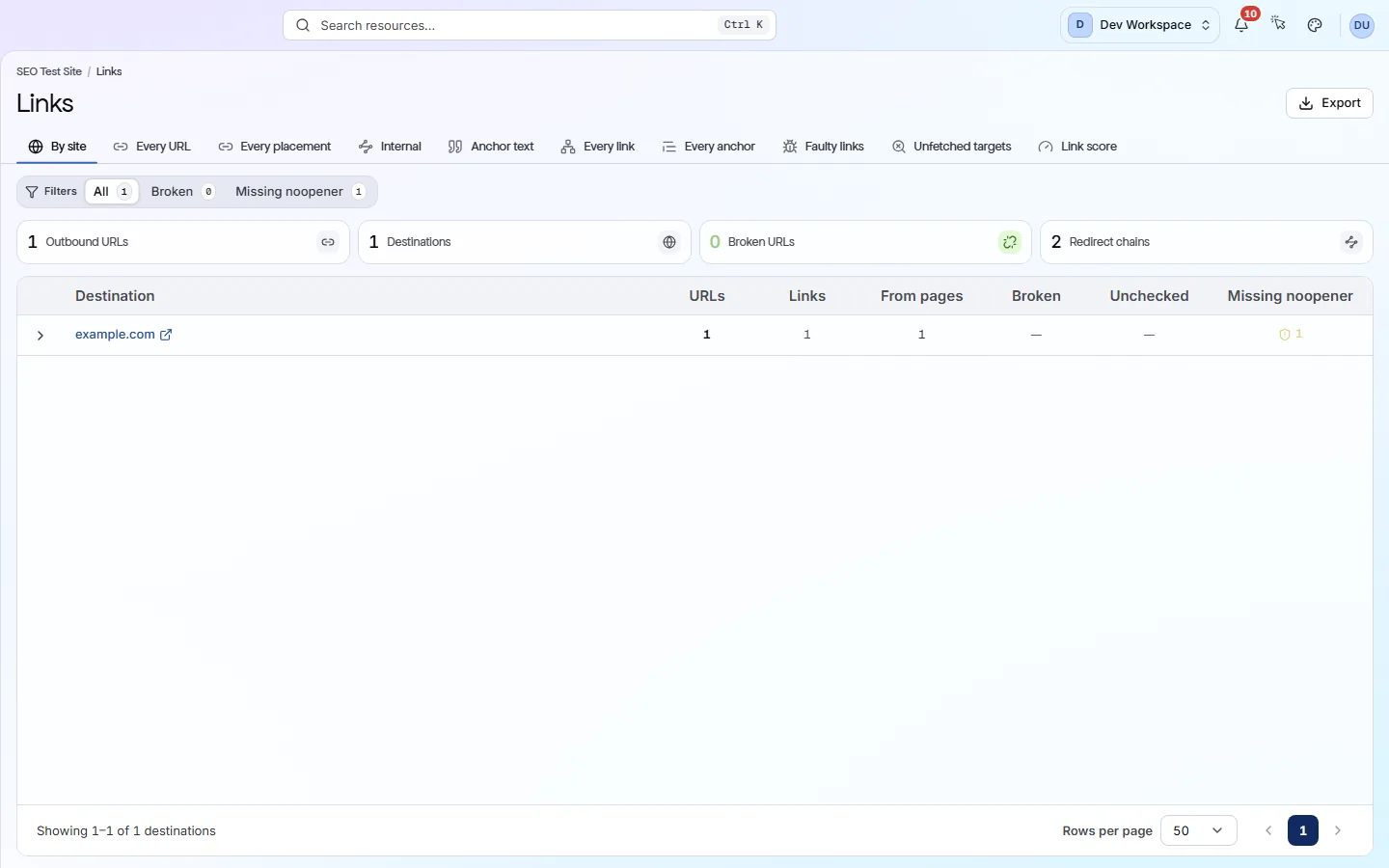
Each card is a real screen in the app: what you see there and what you do with it.
- 01
Outside links grouped by site
The Links screen groups every outside link by the site it points to. Filter to Broken, and a dead site cited in hundreds of articles shows as one row.
- 02
See how the archive is organised
The Structure screen shows each section of your site and how many clicks deep it sits. Find buried or forgotten sections, then link to them.
- 03
AI crawler access at a glance
robots.txt tells bots what they may visit. PixyScan reads yours and shows whether each of 18 AI crawlers is allowed or blocked, and what each one is for.
Getting started
Get started in 3 steps
- Step 1
Scan the archive
In Settings → Crawl, set a page limit big enough for your archive, then run the first scan.
- Step 2
Fix broken links by site
Open the Links screen, group by site and filter to Broken. Each row is one dead site, with every page that links to it.
- Step 3
Scan weekly
Set a weekly schedule. New problems, such as markup broken by a CMS update, appear in the New column that week.
Worth knowing
- Article, BlogPosting and BreadcrumbList markup is checked on every article.
- Each page gets a readability score, and hard-to-read pages are flagged.
- hreflang checks (tags that link language versions of a page) keep multilingual archives tidy.
- Weekly scans put new problems in the Changes screen's New column.
What it doesn’t do
- Checking outside links and images starts on Hobby. Each check uses one link check from a monthly allowance.
- It does not judge writing quality or check for plagiarism. Readability is a formula, not an editor.
Start with Basic or Pro
Basic ($39 a month) scans up to 10,000 pages at a time and includes 250,000 link and image checks a month. Pro ($129 a month) scans 15,000 pages and includes 1,000,000 checks, for a large, link-heavy archive. Bigger archives need Enterprise.
FAQ
Questions you might have
How large an archive can it handle?
Each scan covers up to 10,000 pages on Basic and 15,000 on Pro. Include and exclude patterns let you focus on the sections that matter most.
Does it check outside links on every article?
Yes, from Hobby up. Each check uses one link check from your monthly allowance: 50,000 on Hobby, 250,000 on Basic and 1,000,000 on Pro.
Does it score writing quality?
No. It measures readability with the Flesch-Kincaid formula, which looks at sentence and word length. It does not judge quality or check for plagiarism.
Should we block AI training crawlers?
That is your choice, and many publishers do. PixyScan shows which crawlers your robots.txt allows or blocks, so the file matches what you decided.
See what is wrong with your site
Add your site and get your score, your to-do list and a fix guide for every problem. Free for one site and 500 pages a month. No card, no time limit.
No card needed · Nothing to install · Cancel any time