

See what changed between two scans
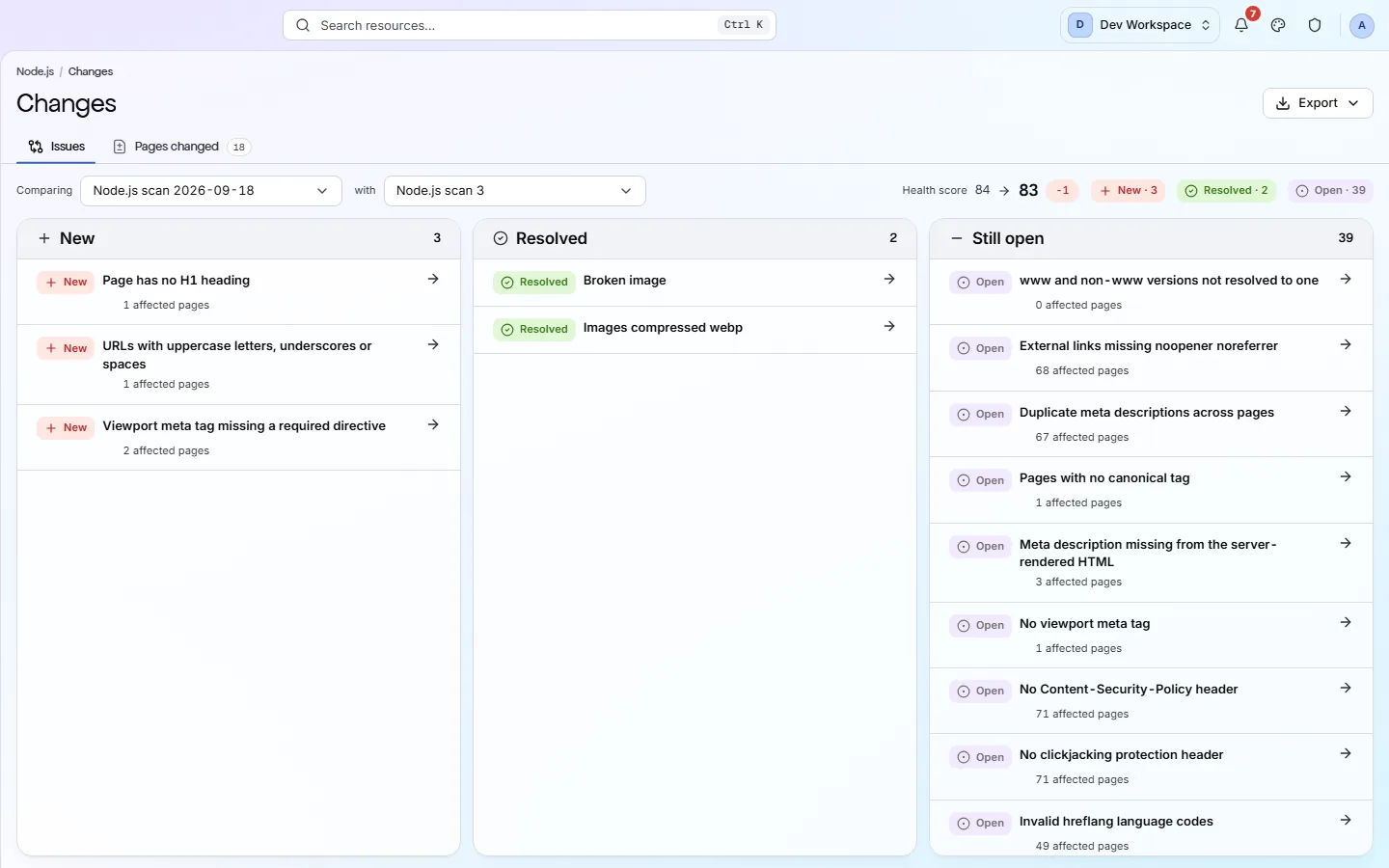
The Changes screen compares two scans of your site. It shows which problems are new, which you fixed and which are still open, and what changed on each page. Included from Hobby up.
What it tells you
Questions this screen answers
What people want to know when they open this screen, and where to find the answer.
- 01
Did our last release break anything?
Compare a scan from after the release with one from before. Read the New column: it lists every check that fails now but did not before. Open a row to see the pages and the fix guide.
- 02
Did our fix work?
Look in the Resolved column. If your fix is under Still open instead, it still fails on at least one page. Open it to see which.
- 03
How did the fixed pages do in Google search?
From Basic, with Google Search Console connected, the Search impact panel lists the fixes and regressions the selected scan recorded. Each shows how Google clicks to those pages did compared with the rest of the site after the change, such as “these pages did 15% better than the rest of the site”. It is a comparison, not proof the change caused it.
- 04
What changed on our pages?
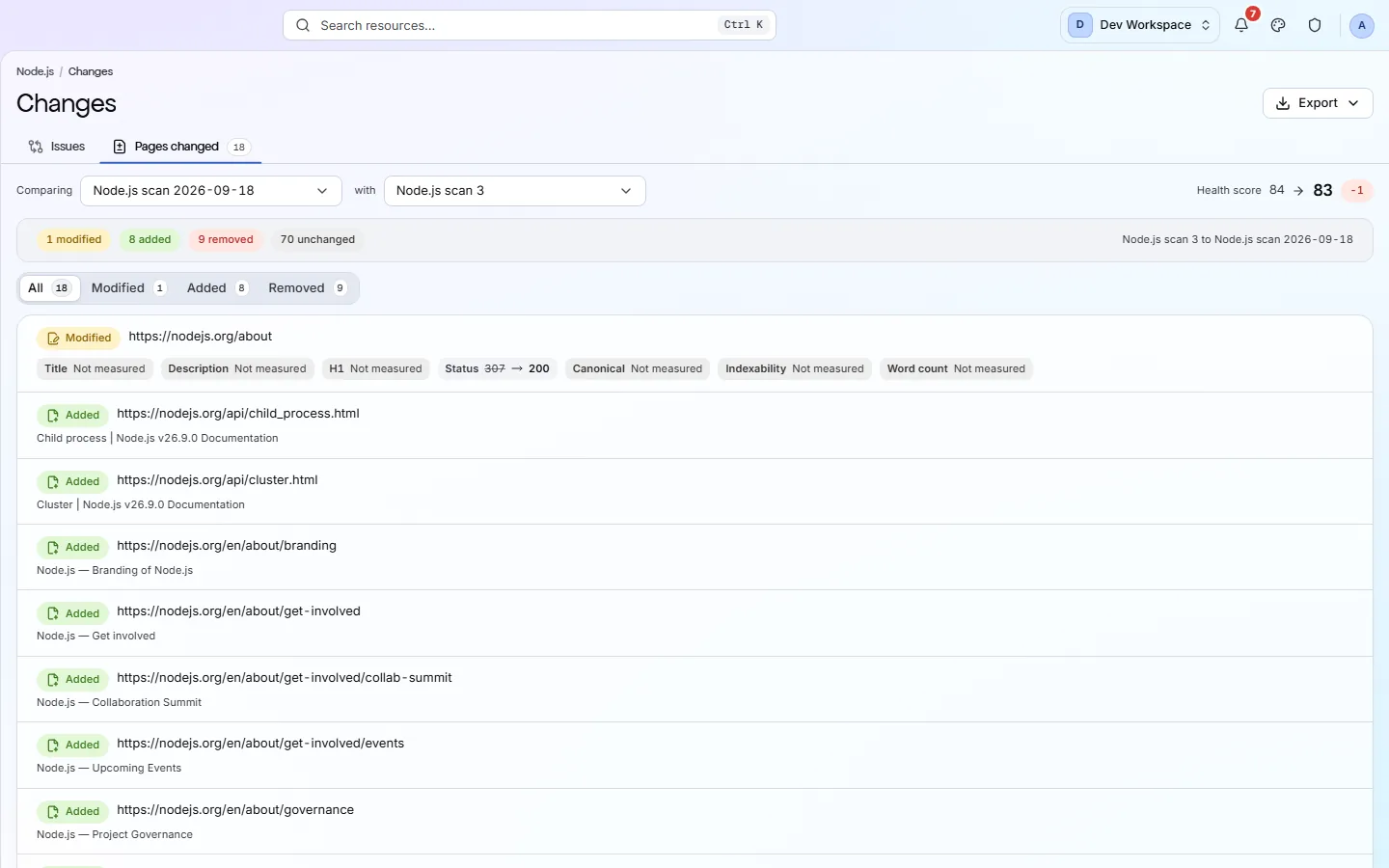
Open Pages changed. It compares seven facts for every page and marks each one Modified, Added or Removed. The old value is crossed out beside the new one, so accidental edits stand out.
- 05
Can I compare older scans?
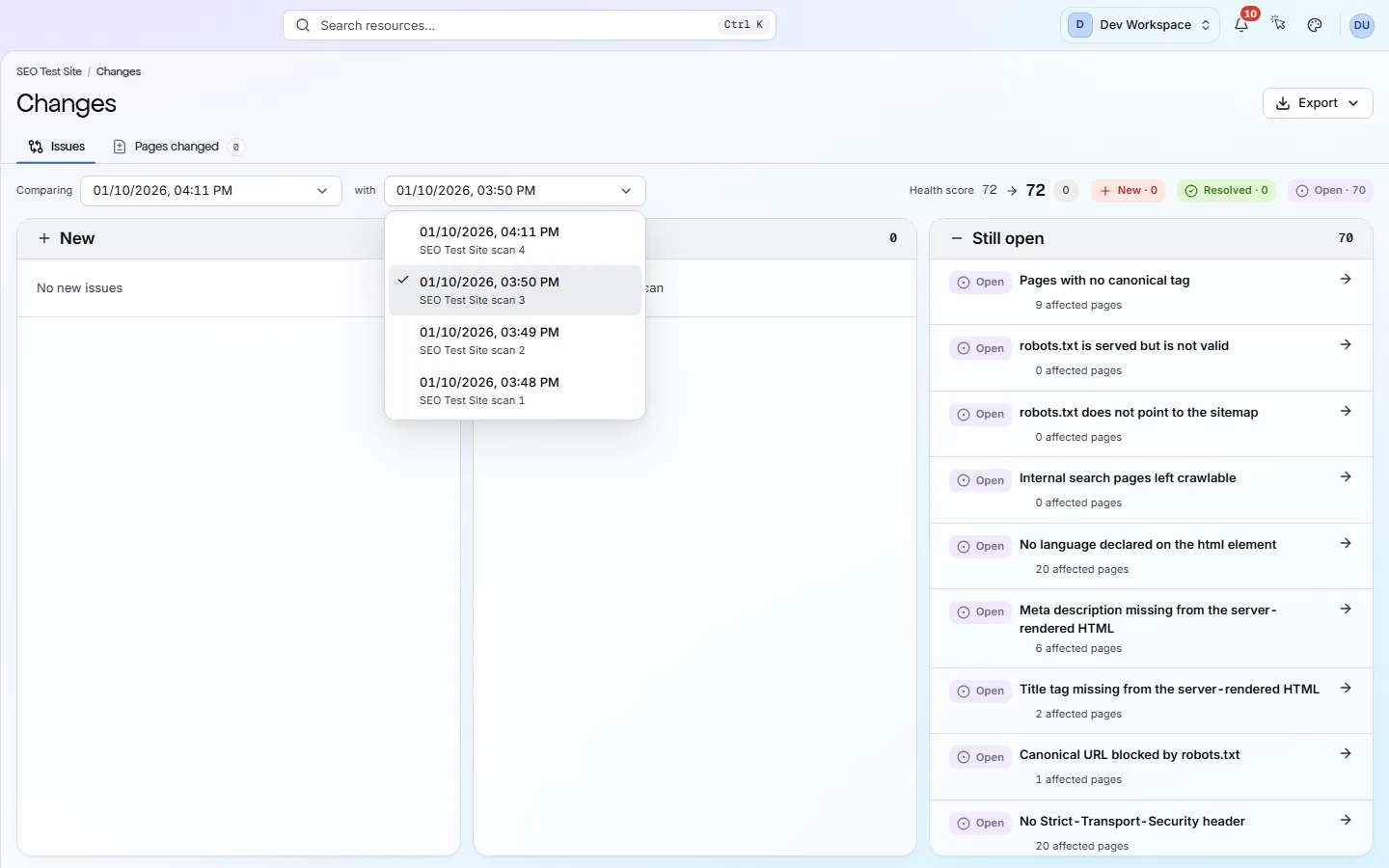
Yes. Use the “Comparing … with …” pickers to choose any two finished scans of the same branch. Your choice is saved in the page address, so you can share the link.
Good to know
The main facts about this screen, and the check categories it shows.
Check categories shown here
On-Page
These checks look at each page's title, meta description, headings and URL. They flag any that are missing, empty, duplicated on other pages, too long or too short, including pages with more than one H1, because these are the first things search engines read and show.
Crawlability
Your robots.txt file and your sitemaps tell search engines which pages to visit. These checks read both, and they flag sitemaps that list broken, blocked or duplicate pages, CSS and JavaScript files that robots.txt blocks, and pages that failed to load during the scan.
Key facts
Before you open this screen
- The Issues tab sorts failing checks into three columns: New, Resolved and Still open.
- Pages changed shows edits to each page's title, description, H1, status, canonical, indexability and word count.
- You can compare any two finished scans of the same branch, not just the latest two.
- Both health scores sit beside the scan pickers, with the difference.
What's on the screen
The screen, part by part
Each part of the screen, from top to bottom.
- 01
Tabs
Issues shows which problems started or stopped. Pages changed shows what was edited on each page.
- 02
Scan pickers and score
Two pickers choose the newer and the older scan. Beside them are both health scores and whether the score went up or down.
- 03
Issues
Three columns: New, Resolved and Still open. Each check shows how many pages it affects and links to its full report.
- 04
Search impact
With Search Console connected, a panel above the columns lists the selected scan's fixes and regressions. Each is measured over the 28 days before the scan and 28 days after, starting 7 days later, and marked Measuring, Early signal, Ready or Not enough data. Only full scans of your production site are measured, each against the scan just before it. The panel only appears once there is something to show, and links to the full list on Search performance, Impact tab.
- 05
Pages changed
Totals for modified, added, removed and unchanged pages. Below, each changed page shows the old value crossed out beside the new one.
Your first visit, step by step
A simple order to follow after your first scan.
- 1
Check which two scans are compared. By default it is your latest scan and the one before.
- 2
Read the New column and open anything that hits many pages.
- 3
Check Resolved to confirm your fixes worked.
- 4
Open Pages changed to find the edits behind any new problems.
More views
Other tabs on this screen
The other tabs and views on this screen.
FAQ
Common questions about this screen
Which tiers include Changes?
Hobby, Basic, Pro and Enterprise. On Free your scans are still kept for 30 days, and you can open any of them from Scan history.
Why can't I pick a certain scan?
Only finished scans that measured the same thing can be compared: same branch, same scan type and same coverage. A preview branch is never compared with your live site, or every page would look added or removed.
Can I get alerts about changes?
Yes. Email, Slack or webhook alerts can go out when a scan finishes or fails, the score drops, or a new critical problem appears. From Basic, with Search Console connected and scans run from CI/CD, you can also be told when Google clicks drop sharply in the 3 days after a deploy, about a week later. Set them up in Settings, Alerts tab.
Does it show who made a change?
No. It compares two scans of your live site, not your code, so it cannot name who made an edit. Comparing the scans either side of a release narrows it to that release. From Basic, scans run from CI/CD (pixyscan-sdk 1.2.0 or later) record the commit or release they ran for, and with Search Console connected each deploy is marked with it on the Search performance trend.
Continue the product tour
Previous and next screens
Screens follow the order of the app’s menu. See the full list to jump to any of them.
See what is wrong with your site
Add your site and get your score, your to-do list and a fix guide for every problem. Free for one site and 500 pages a month. No card, no time limit.
No card needed · Nothing to install · Cancel any time