

See how your site is organised
The Structure screen draws your site from the pages the scan found, grouped into folders such as /blog/. It shows your biggest sections, how deep pages sit, and folders you may have published by mistake.
What it tells you
Questions this screen answers
What people want to know when they open this screen, and where to find the answer.
- 01
Which parts of my site are biggest?
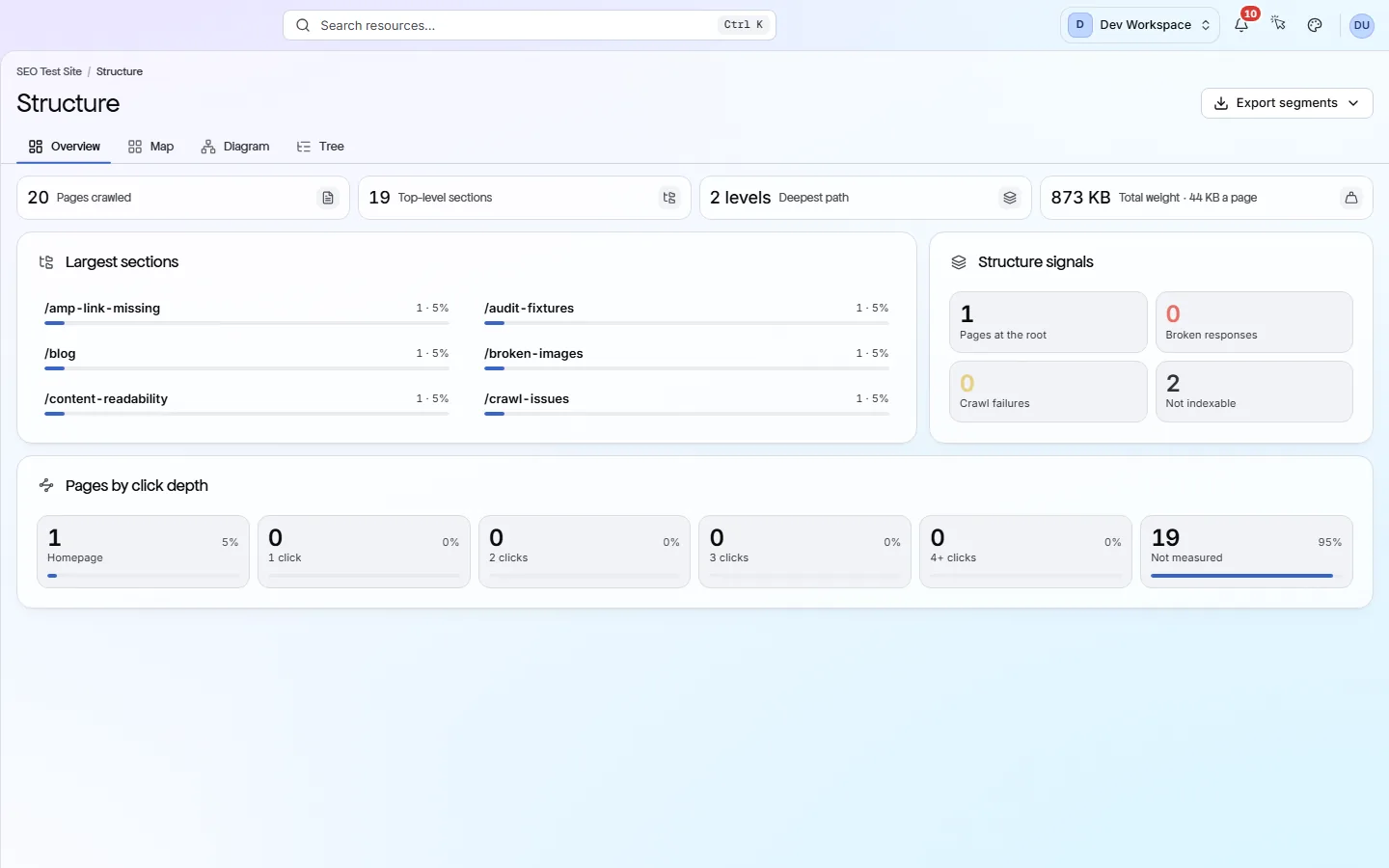
The Largest sections card ranks your top folders, such as /blog/ or /docs/, by page count. The Map draws bigger folders as bigger boxes. The biggest section is usually where most fixes land.
- 02
Are some pages too far from the homepage?
The click depth card groups pages from Homepage to 4+ clicks. Search engines visit deeply buried pages less often. Link to important deep pages from your menu or a hub page.
- 03
Did I publish something by mistake?
Look down the Largest sections list for a folder you do not recognise, such as an old test area. Open it on the Map or Tree to see its pages. Remove them, or hide them from search with a noindex tag.
- 04
How heavy is my site?
The Total weight card adds up each page's HTML and the files it loads, and shows the average per page. A high average usually means large images or scripts. The Images screen helps you find them.
Good to know
The main facts about this screen, and the check categories it shows.
Check categories shown here
On-Page
These checks look at each page's title, meta description, headings and URL. They flag any that are missing, empty, duplicated on other pages, too long or too short, including pages with more than one H1, because these are the first things search engines read and show.
Crawlability
Your robots.txt file and your sitemaps tell search engines which pages to visit. These checks read both, and they flag sitemaps that list broken, blocked or duplicate pages, CSS and JavaScript files that robots.txt blocks, and pages that failed to load during the scan.
Key facts
Before you open this screen
- Your largest sections are listed with their page counts.
- Pages are grouped by click depth: how many clicks each is from your homepage.
- The same folders can be drawn as a map, a diagram or a tree.
- Structure signals count pages with errors, pages that would not load and pages hidden from search.
What's on the screen
The screen, part by part
Each part of the screen, from top to bottom.
- 01
Four numbers
Pages crawled, Top-level sections, Deepest path (the most folder levels in any URL) and Total weight, with the average per page.
- 02
Three cards
Largest sections, Pages by click depth and Structure signals. Structure signals counts pages at the root of your site, error pages, pages that would not load and pages kept out of search.
- 03
Map
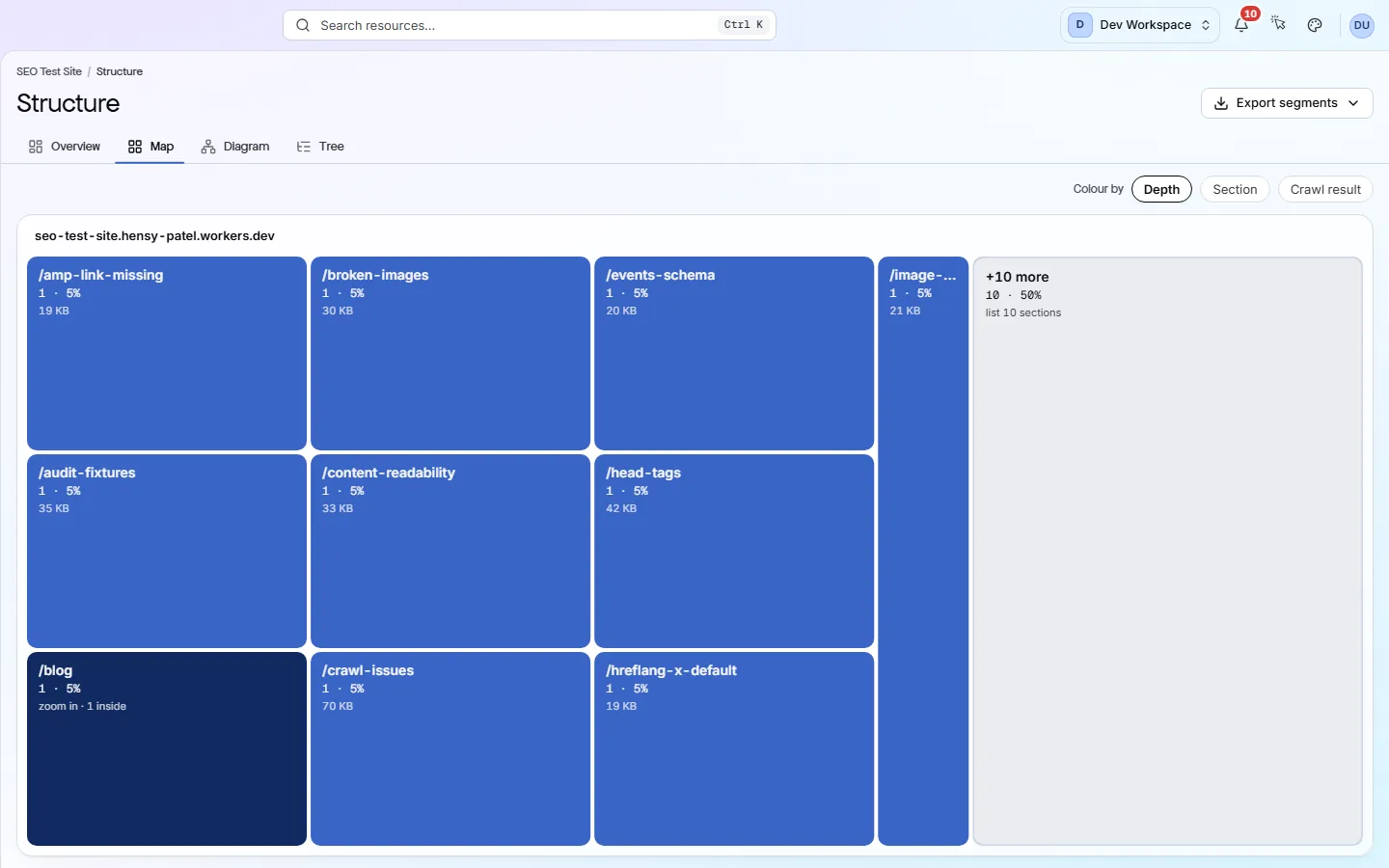
Each box is a folder, sized by its page count. Colour it by click depth, section or crawl result to spot folders full of errors.
- 04
Diagram and Tree
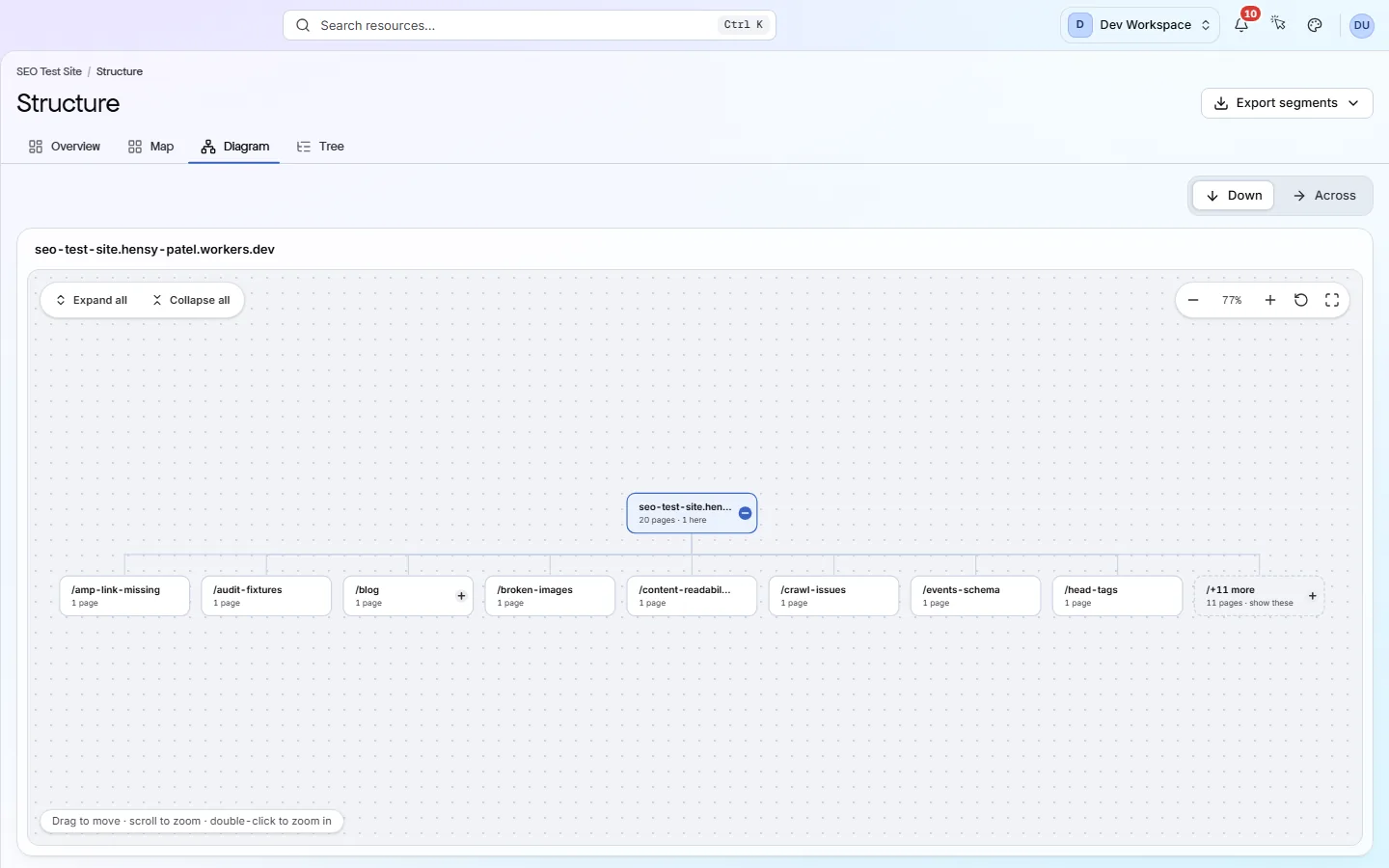
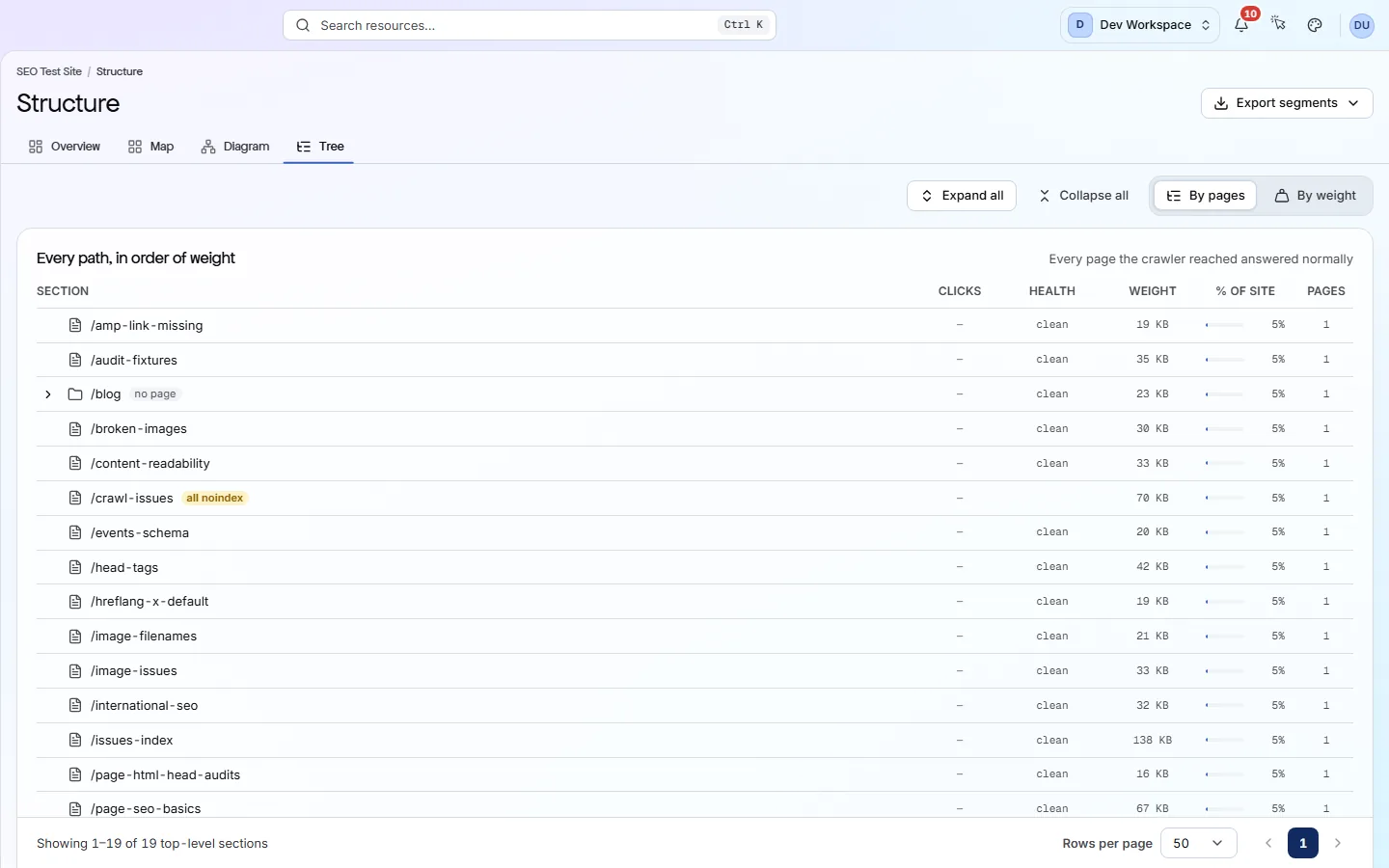
The Diagram draws folders as connected boxes; click one to open its pages. The Tree is an indented outline with bars that compare sizes.
Your first visit, step by step
A simple order to follow after your first scan.
- 1
Read Largest sections and look for any big folder you did not expect.
- 2
Check click depth. A big 4+ clicks group means some pages are hard to reach.
- 3
Open the Map and colour it by Crawl result to see which folders have errors.
- 4
Use Export segments to download the structure as a spreadsheet.
More views
Other tabs on this screen
The other tabs and views on this screen.
FAQ
Common questions about this screen
Is this my sitemap?
No. It is built from the pages the scan actually found by following links. To compare your sitemap with what the scan reached, open the Sitemaps tab on the Crawlability screen.
How much of my site does it show?
The drawings use up to the first 2,000 URLs of the scan, and a badge tells you when there are more. Export segments always covers every URL in the scan.
Can I export it?
Yes, from Hobby up. Export segments downloads one row per folder as CSV, XLSX or JSON. It gives the same file from any tab.
Continue the product tour
Previous and next screens
Screens follow the order of the app’s menu. See the full list to jump to any of them.
See what is wrong with your site
Add your site and get your score, your to-do list and a fix guide for every problem. Free for one site and 500 pages a month. No card, no time limit.
No card needed · Nothing to install · Cancel any time