

Find the images that need fixing
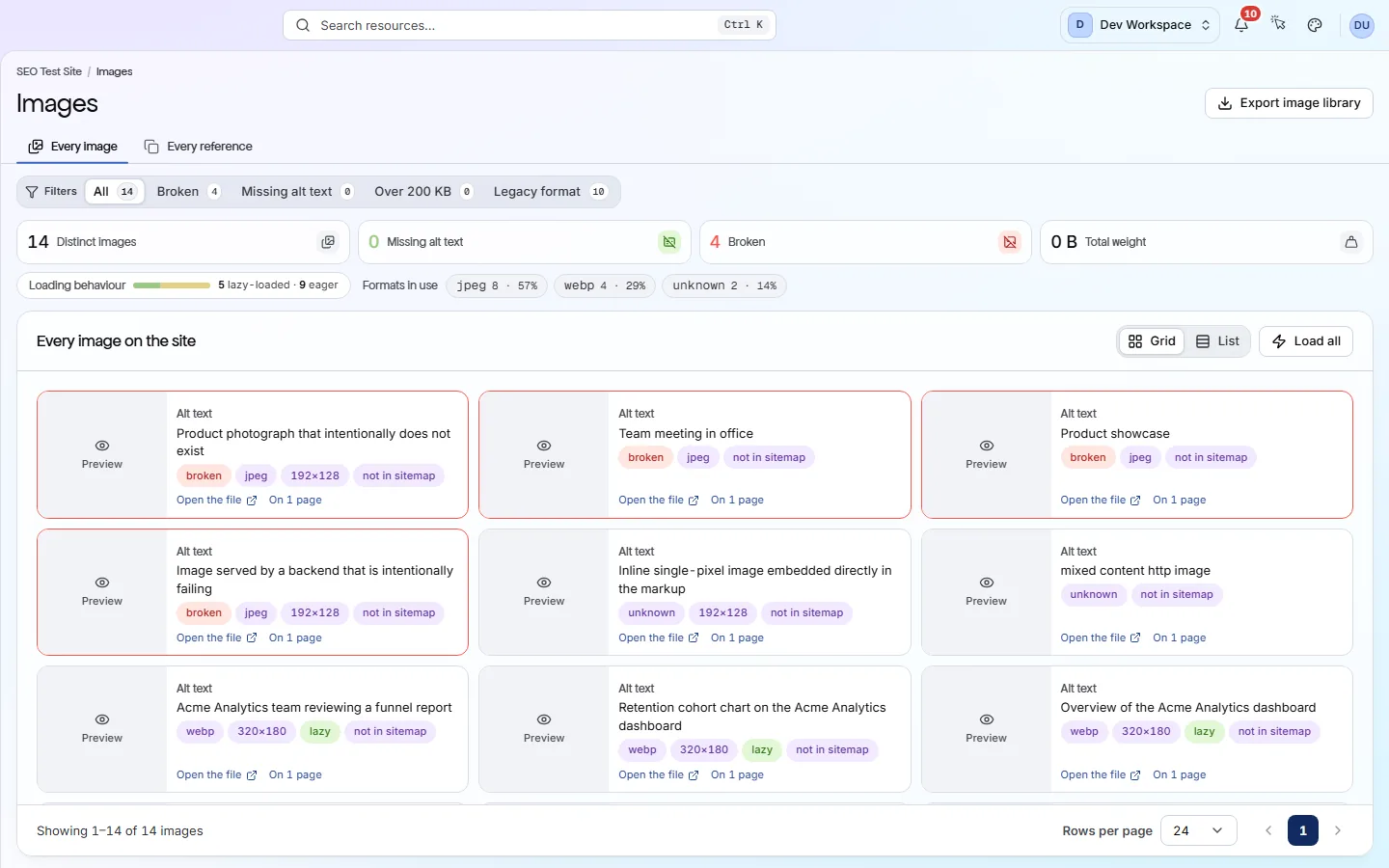
The Images screen puts every image the scan found into one gallery. It shows which are missing alt text, broken, too heavy or in an older format, and which pages use each one.
What it tells you
Questions this screen answers
What people want to know when they open this screen, and where to find the answer.
- 01
Which images have no alt text?
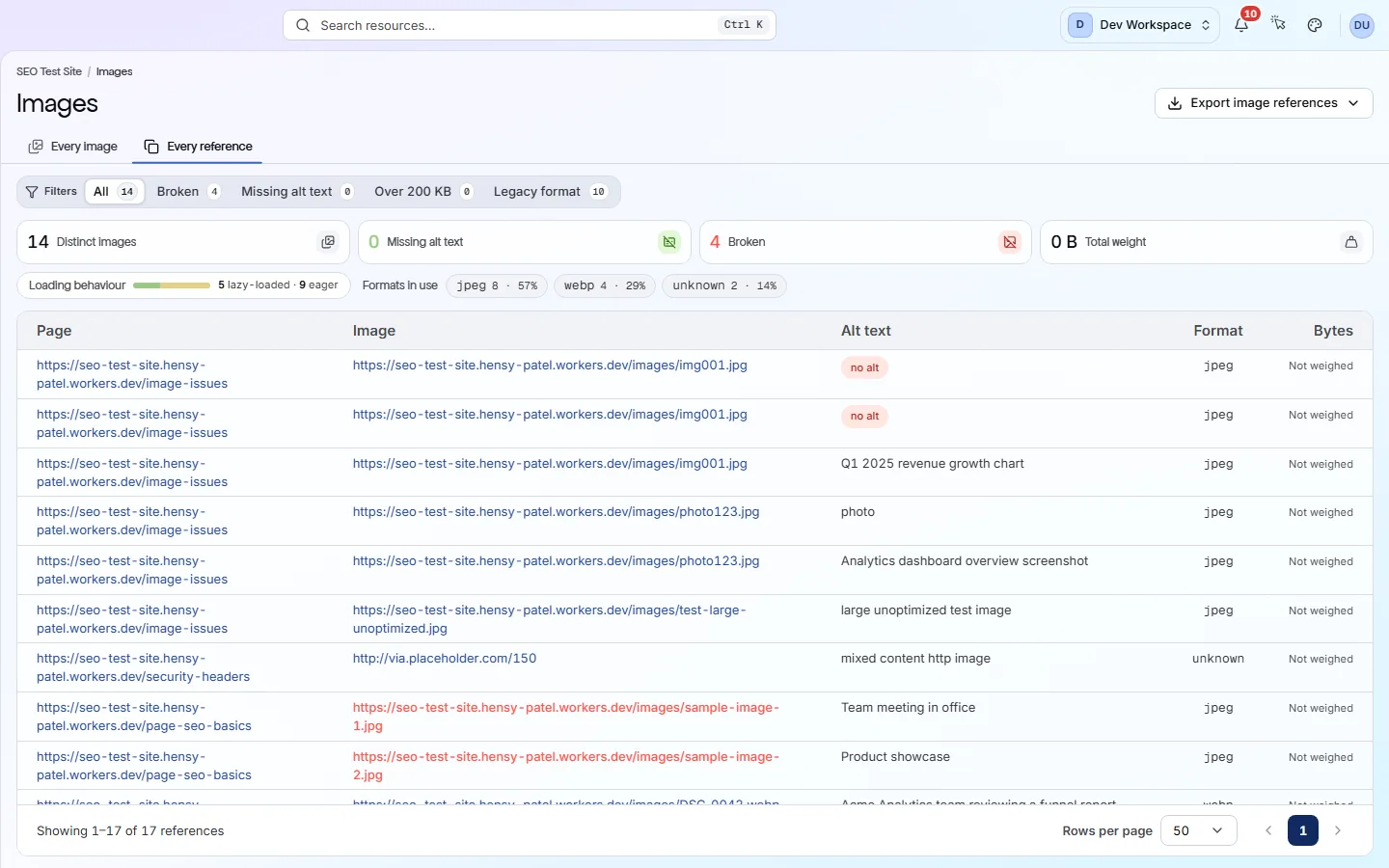
Press Missing alt text. Alt text is a short description of an image for screen readers and search engines. Switch to Every reference to see which pages need it added.
- 02
Which images are too heavy?
Press Over 200 KB. Large files slow down your pages, so resize or compress them. Measuring file weight starts on Hobby.
- 03
Which images use an old format?
Press Legacy format to list images that are not WebP, AVIF or SVG. JPEG, PNG and GIF still work. Converting them to WebP or AVIF often makes them much smaller.
- 04
Which pages use this image?
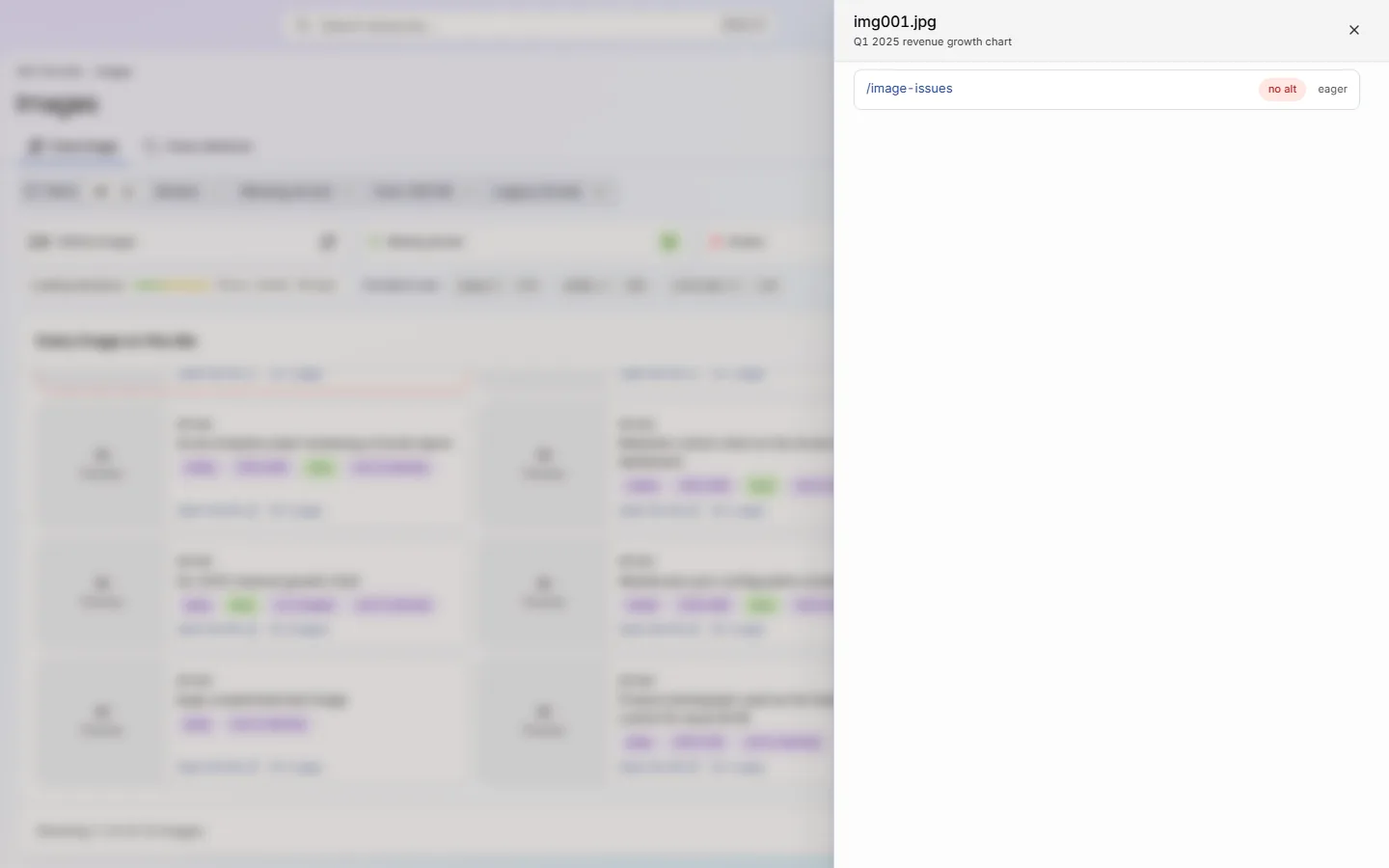
Each card shows how many pages use the image. Open that count to see the list, so you know everywhere a change will show up.
Good to know
The main facts about this screen, and the check categories it shows.
Check categories shown here
Media
These checks look at each image's alt text, size, format and file name, and flag images that are too heavy or in an older format. On Hobby and above they also find images that no longer load.
Key facts
Before you open this screen
- Each image file is listed once, so a logo on every page is one fix, not hundreds.
- Filters show Broken, Missing alt text, Over 200 KB and Legacy format images, each with a count.
- Each card shows alt text, format, size, file weight and how many pages use it.
- From Hobby up, you can export the list to share with a designer or developer.
What's on the screen
The screen, part by part
Each part of the screen, from top to bottom.
- 01
Tabs
Every image lists each file once. Every reference lists each image on each page, which is where you add alt text.
- 02
Filters
Chips for Broken, Missing alt text, Over 200 KB and Legacy format, each with a count. Press one to narrow the list.
- 03
Summary cards
Distinct images, Missing alt text, Broken and Total weight for the whole site. On Free, Broken and Total weight read “Not measured”.
- 04
Image cards
A preview of each image with its alt text, format, size, file weight and how many pages use it.
Your first visit, step by step
A simple order to follow after your first scan.
- 1
Press Missing alt text and start with the image used on the most pages.
- 2
Switch to Every reference to see which pages need alt text.
- 3
Press Over 200 KB and compress or resize the largest files.
- 4
Press Broken and fix or remove images that no longer load.
More views
Other tabs on this screen
The other tabs and views on this screen.
FAQ
Common questions about this screen
Does it find images added by JavaScript?
By default it lists images in the HTML your server sends. From Pro up, turn on JavaScript rendering in Settings, Crawl tab, to catch images your scripts add. Scans then take about 7.6 times as long.
Why do some cards say “Not measured”?
Weighing an image and testing that it loads needs an extra request per file. Those requests start on Hobby. On Free, weight and Broken read “Not measured” rather than a misleading zero. Alt text and format are checked on every tier.
Does this screen affect my health score?
No, this screen only shows what the scan found. Image problems such as missing alt text are scored by the Media checks on the Issues screen.
Continue the product tour
Previous and next screens
Screens follow the order of the app’s menu. See the full list to jump to any of them.
See what is wrong with your site
Add your site and get your score, your to-do list and a fix guide for every problem. Free for one site and 500 pages a month. No card, no time limit.
No card needed · Nothing to install · Cancel any time