

User guide3 min
Changes
The Changes screen compares two scans and shows only what is different: checks that started failing, checks that were fixed, and pages that were edited. Open it after a release or a fix to see what that change did.
What this screen shows#
Only what changed between two scans, so you do not have to reread the whole issue list.
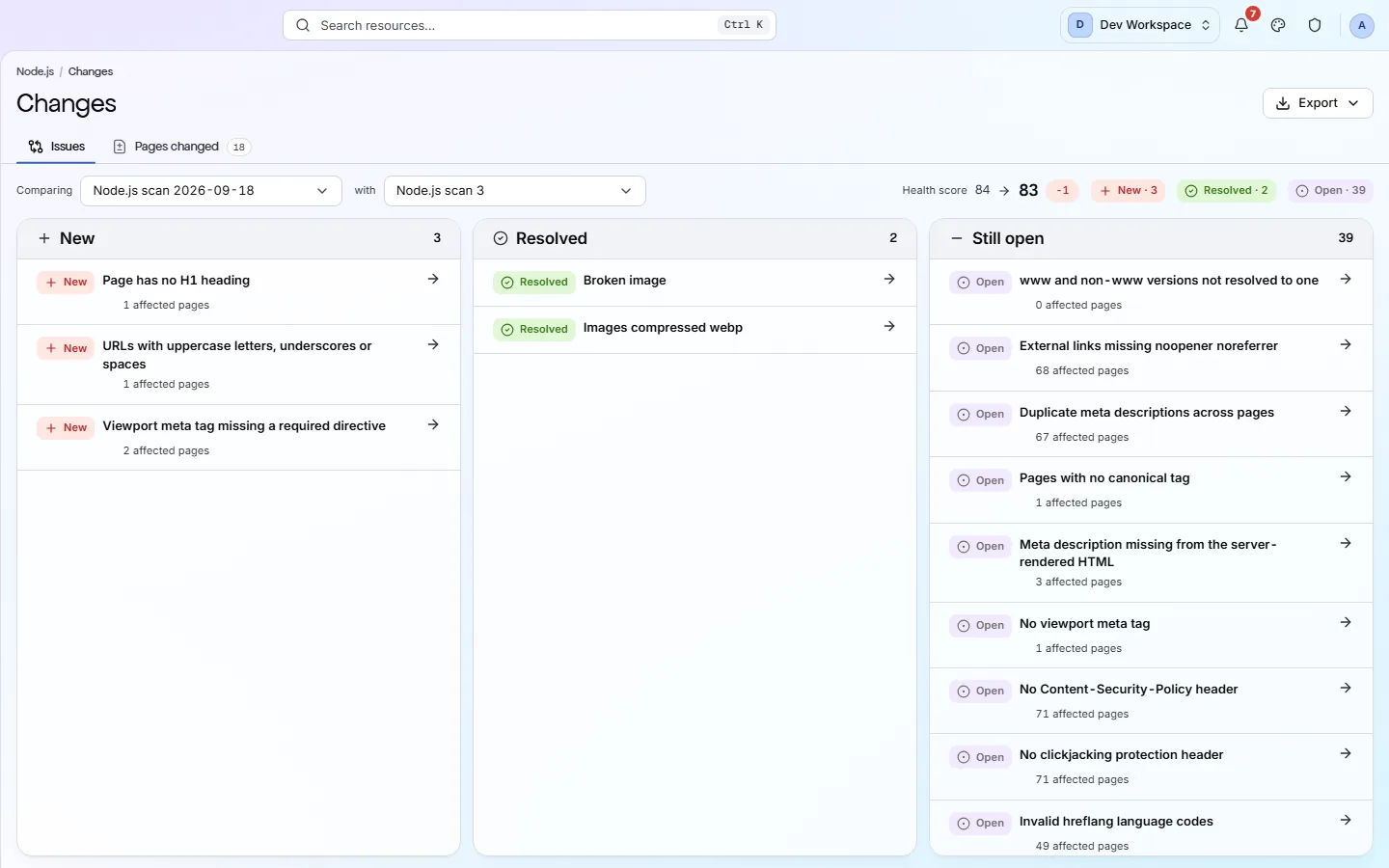
By default, the latest scan is compared with the previous scan of the same branch. Failing checks are sorted into three columns:
New: failing now, but not before. Resolved: failing before, passing now. Still open: failing in both scans.
Each row shows how many pages the check affects. The top of the screen shows how the health score moved.
app.pixyscan.com/w/…/s/…/changes
How to get there#
Changes is in the Monitor group of the site sidebar.
- 1
Open Changes in the site sidebar
It is in the Monitor group, between Reports and Scan history.
- 2
Or click Since the previous scan on the overview
This link is in the row of links below the health score.
- 3
Pick other scans if you need to
The pickers at the top read: Comparing [newer scan] with [older scan]. Only finished scans are offered. The older picker only lists scans that are fair to compare: the same branch, the same kind of scan (a full crawl or a custom URL scan), and both full or both partial.
The two tabs#
One tab compares checks. The other compares pages.
| Field | Answers | What it does |
|---|---|---|
| Issues | Which checks changed? | The New, Resolved and Still open columns, one row per check. Read it after a fix to confirm it worked and broke nothing else. |
| Pages changed | What was edited? | Pages sorted into Modified, Added and Removed. For a modified page, the old value is crossed out next to the new one. |
Pages changed
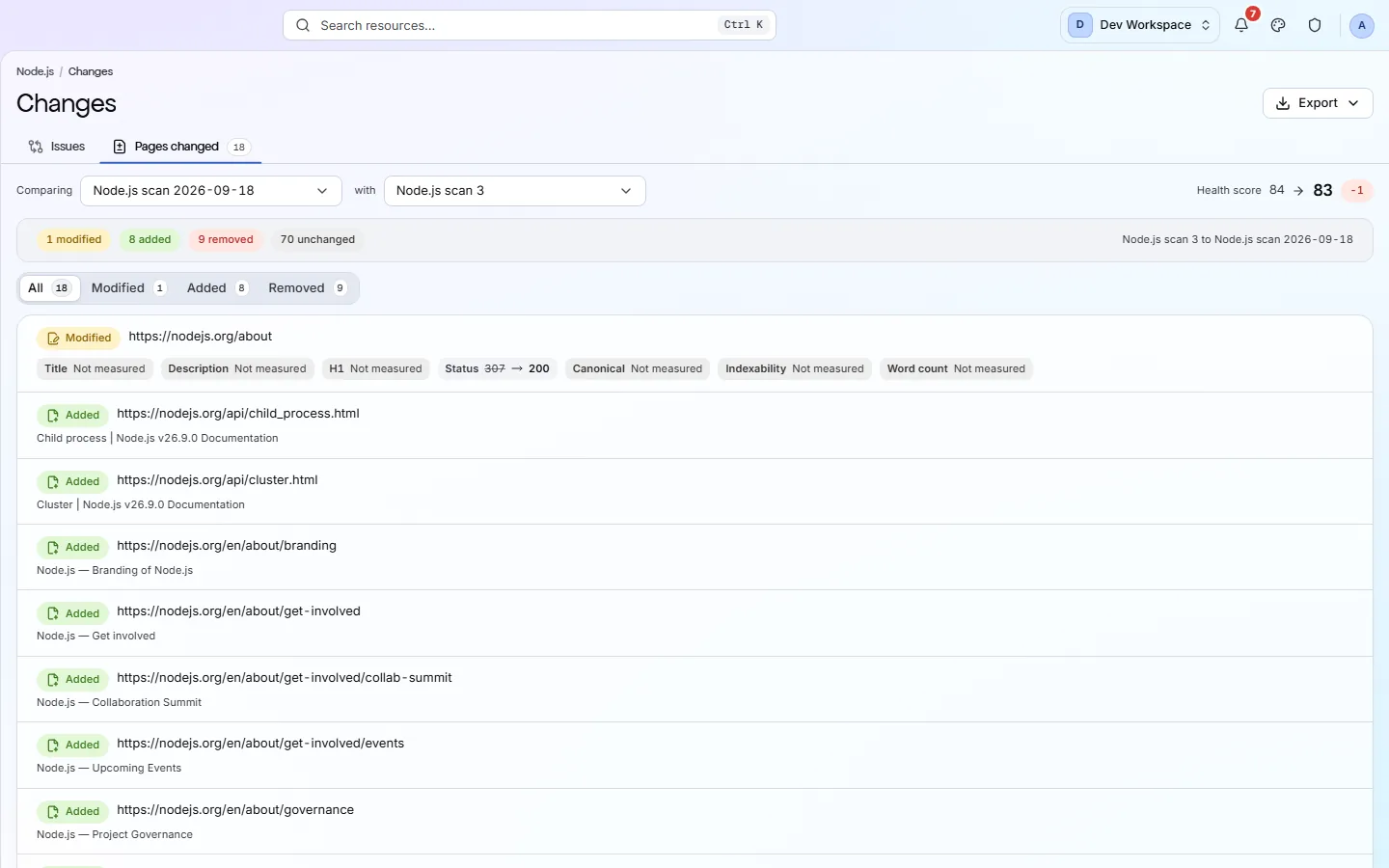
Pages changed compares seven things on every page: title, meta description, H1 heading, status code, canonical URL (the address you tell search engines is the main copy), whether it can be indexed, and word count.
Both tabs always compare the same two scans. Your tab and scans are saved in the web address, so you can send someone the exact comparison you are looking at.
With Search Console connected, a Search impact panel lists the fixes and regressions of the scan you are looking at, and how their pages did in Google search afterwards compared with the rest of the site. See Measure the impact of your fixes.
Each branch is compared separately#
A scan of a preview is never compared with a scan of your live site.
Every scan records which branch of your site it checked. Scans started from your CI pipeline (your automatic build-and-deploy process, from Basic up) can check a preview of a branch. Scheduled scans usually check your live site.
Each scan is only compared with earlier scans of the same branch. So a half-finished preview can never make your live site's results look worse.
Why is there nothing to compare?
Does something here not match what you see in the app? Tell us