

User guide3 min
Pages
The Pages screen lists every URL the scan reached. Use the table to find one page or filter a group. Use the tree to see how your site is organised into folders. Click any page to open its full report.
How to get there#
Pages is the first item under Explore in the site sidebar.
- 1
Open Pages in the site sidebar
It is the first item in the Explore group.
- 2
Choose Table or Tree at the top
Table is the default. Your view, sorting and filters are saved in the web address, so a link you share opens the same view.
app.pixyscan.com/w/…/s/…/pages
The two views#
Both views show the same pages, arranged two ways.
| Field | Use it when | What it does |
|---|---|---|
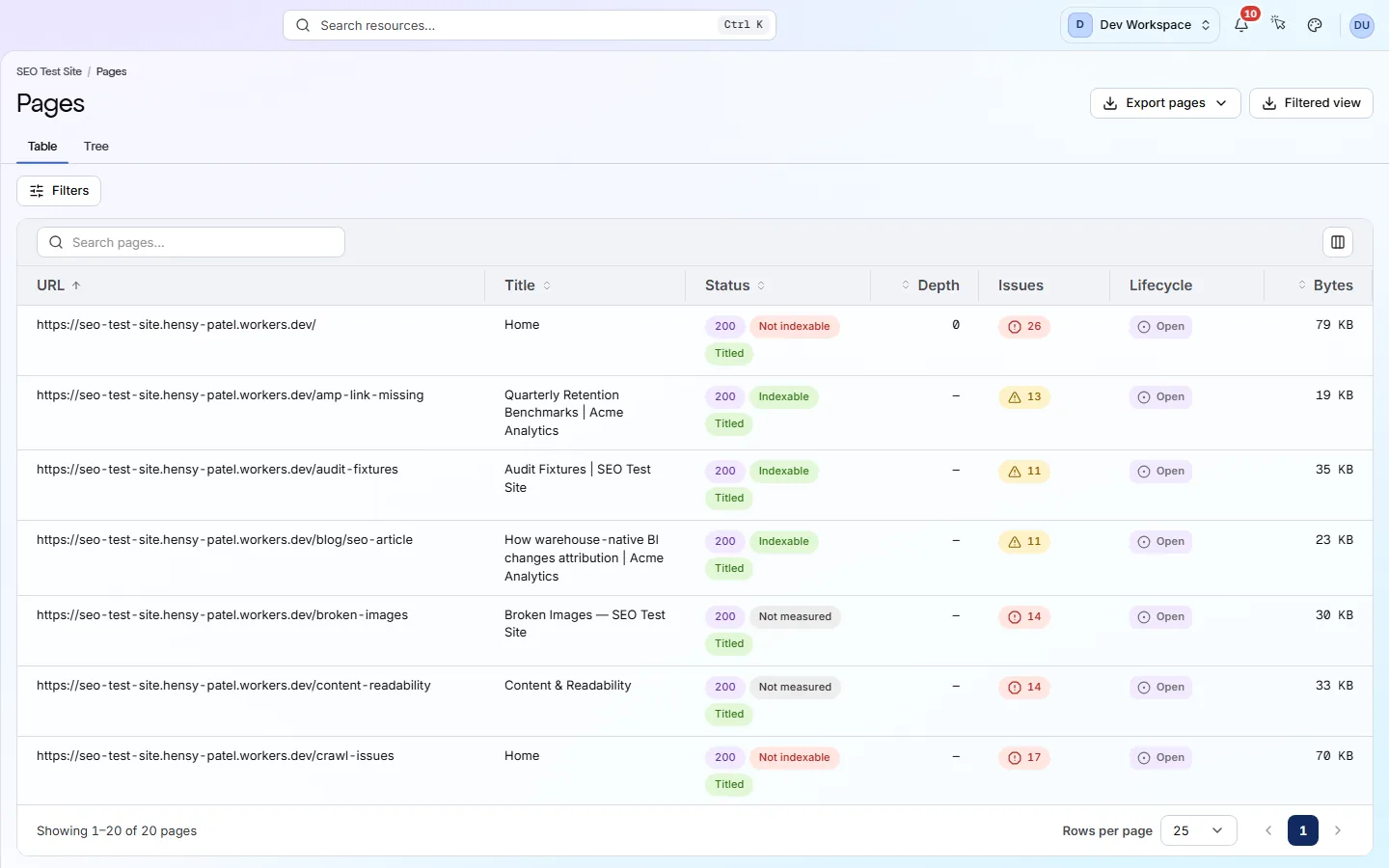
| Table | You know what you want | A sortable list of every page. The status buttons above it, such as 200 OK or 404 Not found, filter by what the server returned. The Filters menu narrows further by crawl result, issue severity, sitemap, depth, indexability, structured data, word count, size, response time and inlinks (links pointing to the page). |
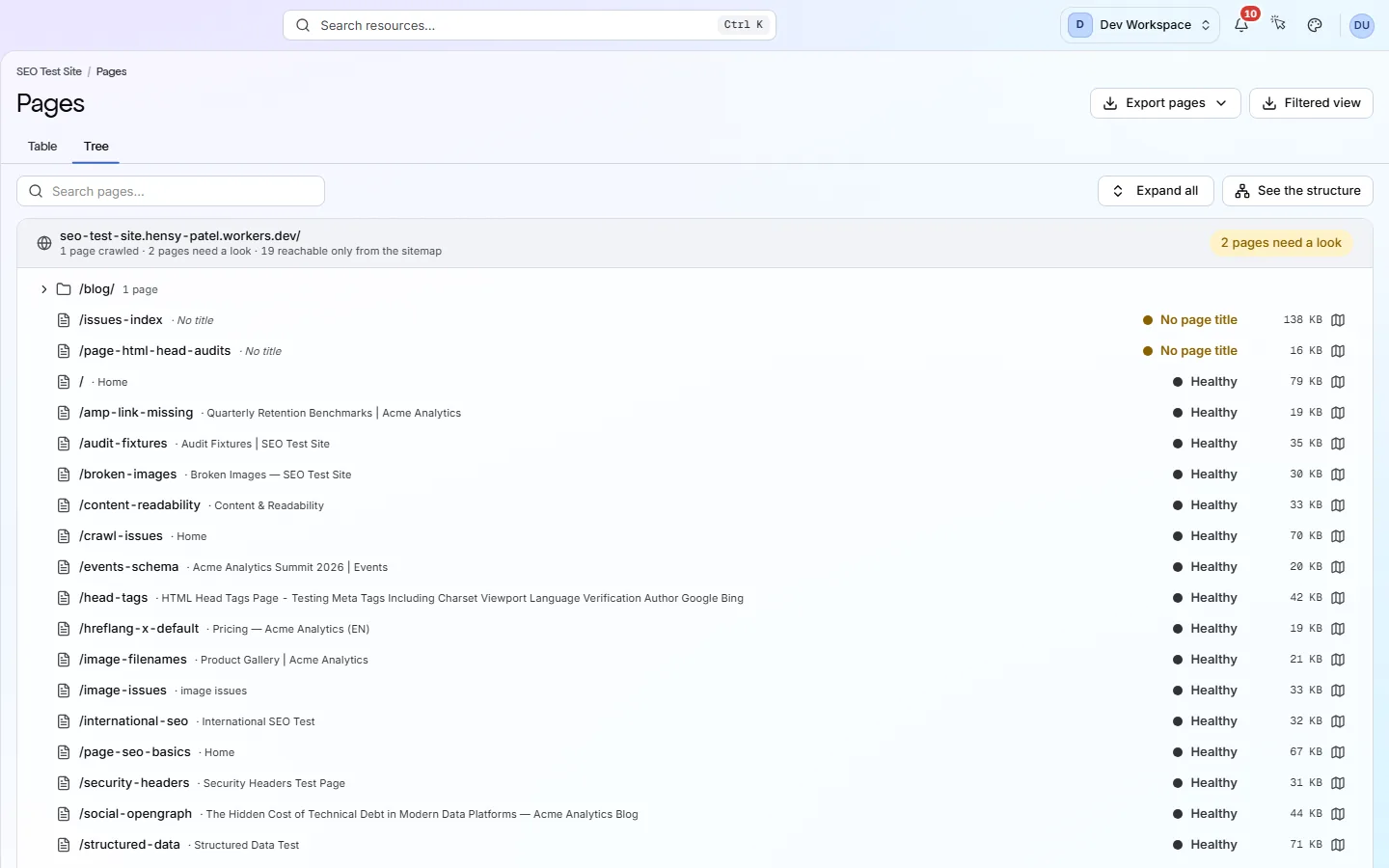
| Tree | You want the big picture | Pages grouped into your site's folders. Each folder shows how many pages it holds and whether any need attention. Expand all opens every folder at once. |
Tree
Read the table#
The table's columns, from left to right.
| Field | What it is | What it does |
|---|---|---|
| URL | Path | The page's address on your site. |
| Title | As served | The text of the page's title tag, or No title if it has none. |
| Status | 200 · Indexable · Titled | Three badges: the status code the server returned (200 means OK, or Not fetched), whether search engines may index the page (list it in results), and whether it has a title. |
| Depth | Clicks | Clicks from the homepage to this page. Important pages buried deep are harder for search engines to find. |
| Issues | Count | How many findings this page has, or No issues. |
| Clicks · Impr. | 28 days | Google search clicks and impressions for the page, when the site is connected to Search Console and your plan includes Search impact. Press a heading to sort by traffic. A note above the table says how many pages were matched. |
| Lifecycle | New · Open · Regressed · Resolved | How this page compares with the previous scan of the same branch. See the next table. |
| Bytes | HTML only | The size of the page's HTML only. Images, scripts and other files it loads are not counted. |
| Field | Means | What it does |
|---|---|---|
| New | New page | The page was not in the previous scan of this branch. |
| Regressed | More findings | The page has more findings than it did in the previous scan. |
| Open | Still has findings | The page still has findings, but no more than in the previous scan. |
| Resolved | Now clean | The page had findings in the previous scan and has none now. |
| Unchanged | Clean both times | The page had no findings in either scan. |
| Not compared | No baseline | No earlier scan of this branch, or one of the two scans did not fetch this page. |
Need every check for one page?
Click the row. The page report shows every finding on that page, plus its content, links, images and structured data.
Does something here not match what you see in the app? Tell us