

User guide3 min
Images
The Images screen lists every image the scan found. One tab shows each file once. The other shows it once for every page it is on. Use that one when writing alt text.
How to get there#
Images is in the Explore group of the site sidebar, after Links.
- 1
Open Images in the sidebar
Open the site, then choose Images under Explore. The address ends in /media. That is the same screen.
- 2
Pick a tab
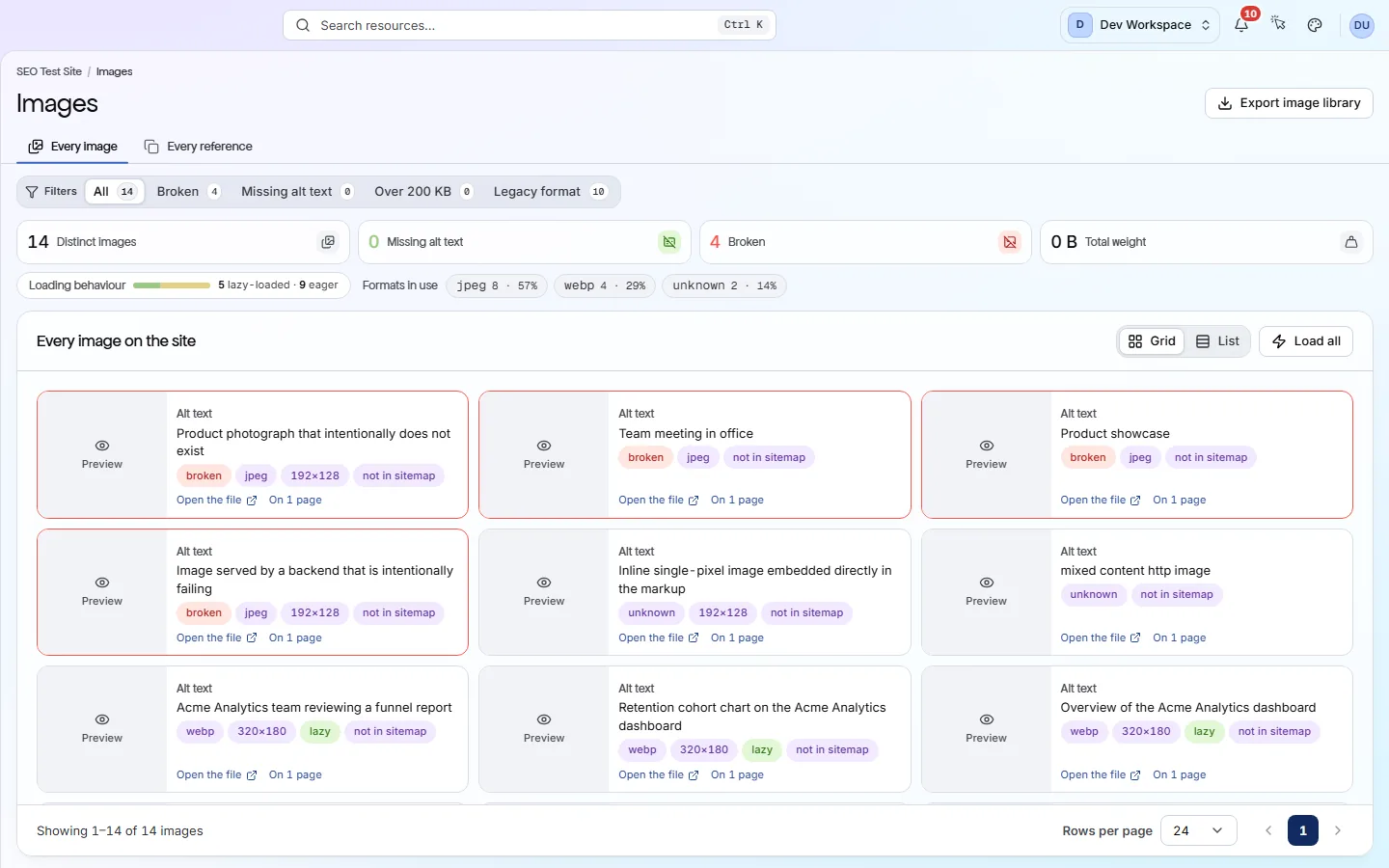
Every image shows each file once, as a grid or a list. Every reference shows one row for each place an image is used.
- 3
Filter to the problem you want to fix
Use Broken, Missing alt text, Over 200 KB or Legacy format on either tab.
app.pixyscan.com/w/…/s/…/media
The two tabs#
One row per image, or one row per image per page.
| Field | A row is | What it does |
|---|---|---|
| Every image | One file | Each image once. Use it to find heavy files or old formats. Click On N pages to see every page that uses the file. |
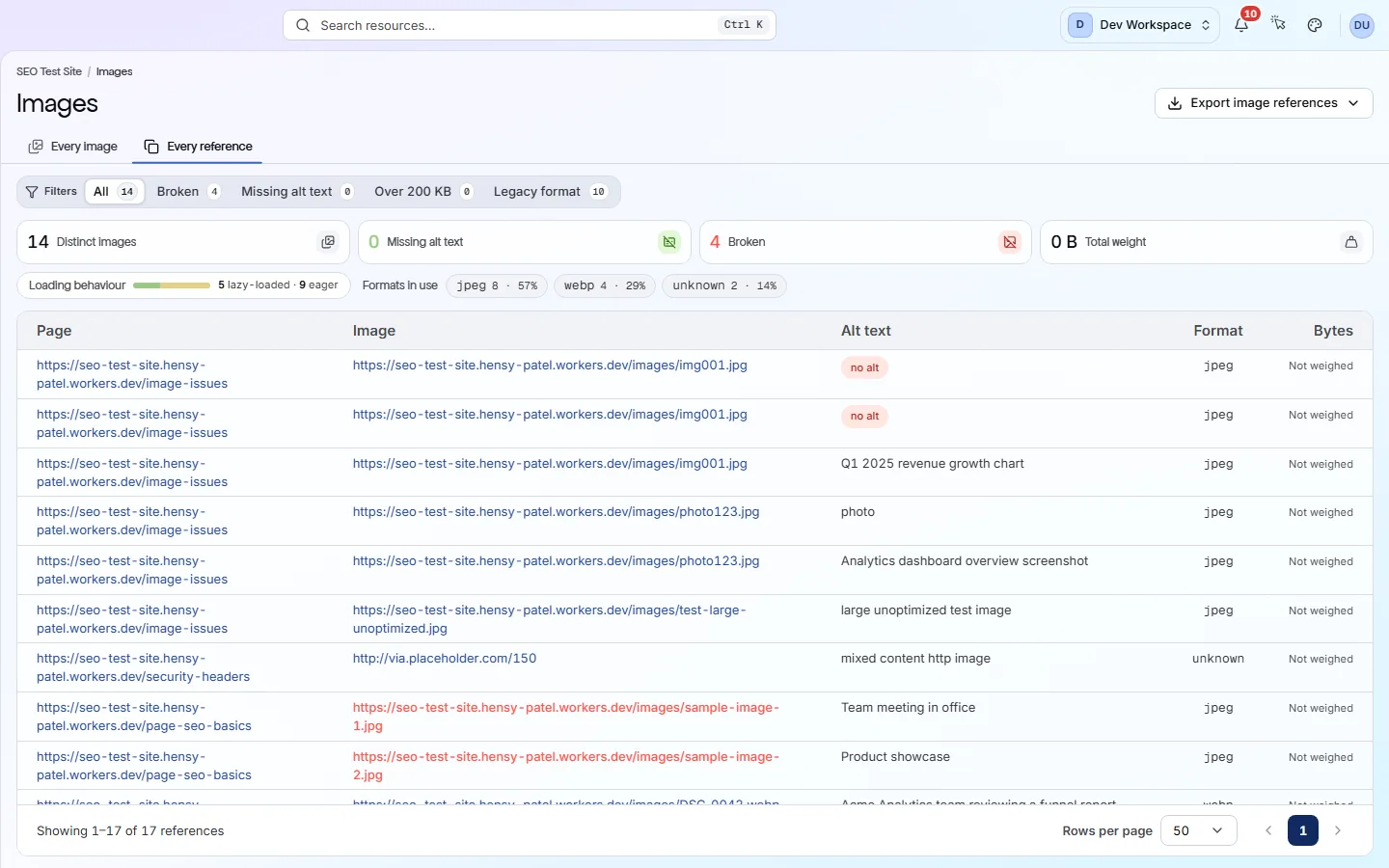
| Every reference | One image on one page | A logo on forty pages shows as forty rows. Alt text is written on each page separately, so use this tab to find the exact page to fix. |
Every reference
What the cards and filters count#
The four cards are totals for the whole site, counted by file.
| Field | What it is | What it does |
|---|---|---|
| Distinct images | Count | How many different image files the scan found. |
| Missing alt text | Count | Files with no usable alt text on any page they are on. Alt text is a short description that screen readers read aloud and search engines use to understand the image. |
| Broken | Count | Files that answered with a status of 400 or above (an error) when PixyScan asked for them. |
| Total weight | Bytes | The combined file size of every image on the site. |
| Over 200 KB | Filter | Files larger than 200 KB. These are worth compressing or resizing. |
| Legacy format | Filter | Any format other than WebP, AVIF or SVG, such as JPEG, PNG and GIF. These are usually larger. |
Why does it say Not measured? Broken and Total weight start at Hobby
Decorative images are counted here, but not on Issues
Click a page on Every reference to open that page's report. Its Images tab shows every image on the page. Exports such as Export image library are included from Hobby up.
Does something here not match what you see in the app? Tell us