

User guide3 min
Schema
Structured data (also called schema) is hidden code that tells search engines exactly what a page is, such as an article, a product or your organisation. This screen shows which types your pages use and which blocks have faults.
How to get there#
Schema is in the Explore group of the site sidebar, after Content.
- 1
Open Schema in the sidebar
Open the site, then choose Schema under Explore.
- 2
Read Overview, then open Faults
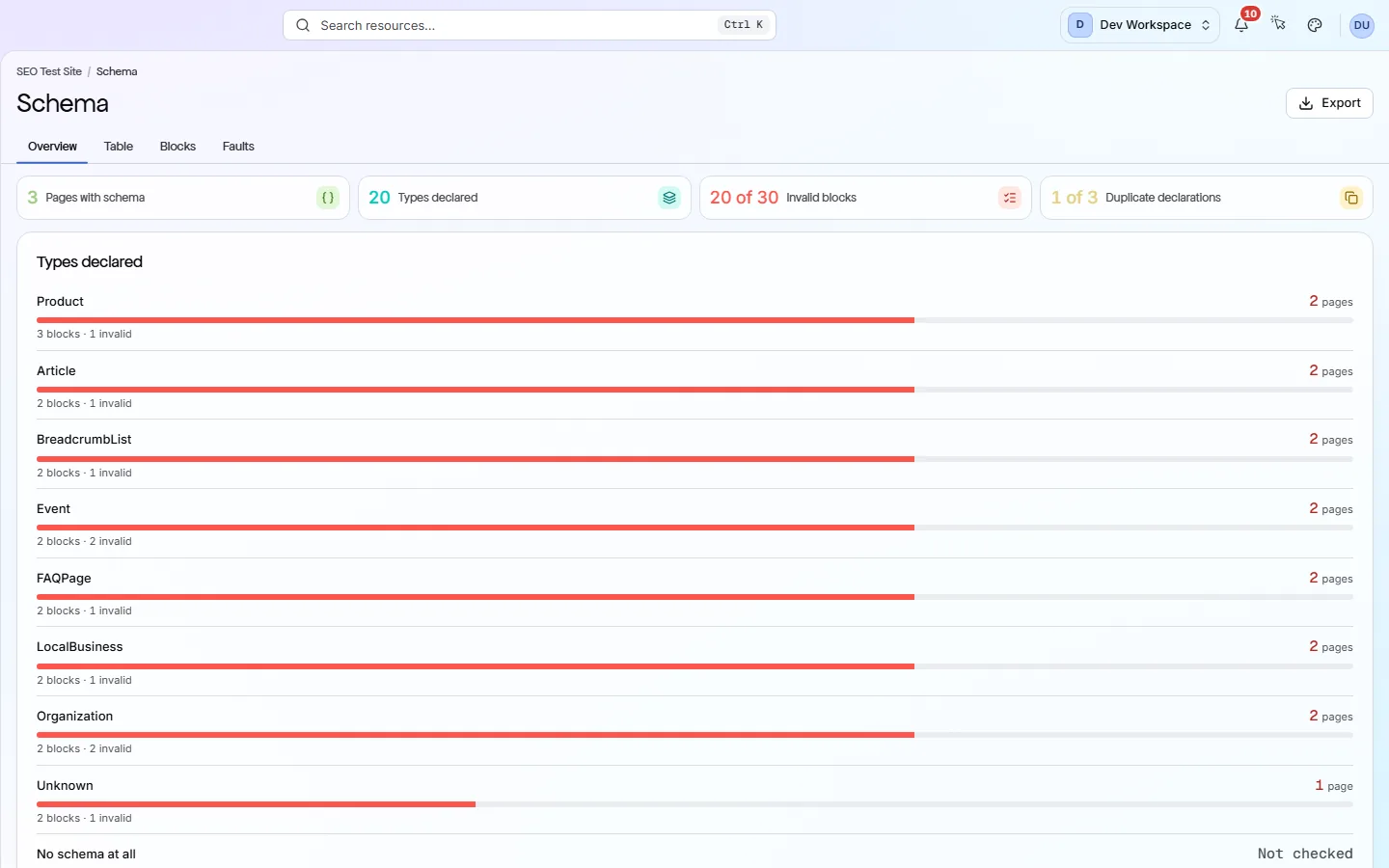
Overview shows which types you have and on how many pages. Faults groups what is wrong, so you can fix one problem on many pages at once.
- 3
Open a page to see its blocks
Click a URL on the Table tab. The page's report opens on its Schema tab, with every block on that page.
app.pixyscan.com/w/…/s/…/schema
If the scan found no structured data#
An empty screen does not mean your site is broken. Your pages just do not have any structured data yet.
Structured data is optional. But without it, your pages cannot get rich results in Google (extras such as breadcrumbs, product details or FAQs). It is also 20% of the AI readiness score.
The Issues screen lists what to add first, such as Organization or WebSite schema, with a fix guide for each.
The four tabs#
The same structured data, viewed by type, by page, by block and by fault.
| Field | A row is | What it does |
|---|---|---|
| Overview | One type | Four tiles, then each schema type with how many pages and blocks use it. Click a type to list its pages. |
| Table | One page | Which types each page uses, how many blocks it has, and how many are invalid. Expand a row to see types declared more than once. |
| Blocks | One block | Each block of structured data found, with its page, type, format and whether it is valid. This is exactly what was read. |
| Faults | One problem | Each fault message, its kind (Validation error or Missing field), how often it occurs, and how many pages it affects. |
Read the tiles#
The four tiles stay at the top of every tab.
| Field | Example | What it does |
|---|---|---|
| Pages with schema | 12 | How many pages have any structured data at all. |
| Types declared | 2 | How many different types your site uses, such as Organization or BreadcrumbList. |
| Invalid blocks | 0 of 23 | Blocks that failed validation (a correctness test), out of every block found. Click it to list the pages with an invalid block. |
| Duplicate declarations | 0 of 12 | Pages that declare the same type more than once, out of the pages with schema. Often a plugin and a theme both add the same code. |
Export on the Faults tab downloads the fault summary as CSV, Excel or JSON. The other tabs export their rows as CSV. Exports need the Hobby tier or above.
Does something here not match what you see in the app? Tell us